
Many users encounter the frustrating message “To Try Again Enter A1B2C3 Below” when attempting to log in, reset a password, submit a form, or verify their identity online. This message typically indicates a security verification step designed to prevent automated access. While it can feel confusing or unnecessary, the error is usually easy to fix with the right approach.
TLDR: The “To Try Again Enter A1B2C3 Below” error usually appears due to failed verification attempts, incorrect captcha entry, browser issues, or suspicious activity detection. Fixing it often requires carefully re-entering the code, refreshing the page, clearing browser cache, or disabling extensions. In some cases, switching devices or resetting your network connection resolves the issue. Following basic troubleshooting steps will help most users regain access quickly.
This guide explains why the error appears, what it means, and how to resolve it efficiently. Whether you are facing this issue on a login page, payment gateway, or online form, the steps below will help identify and fix the root cause.
Understanding the “To Try Again Enter A1B2C3 Below” Error
The message typically appears as part of a captcha verification system. Captcha codes are used to differentiate between human users and automated bots. When a system detects unusual behavior—such as multiple failed login attempts or rapid form submissions—it may trigger this additional verification step.
Common reasons the error appears include:
- Incorrect captcha entry
- Expired verification code
- Browser cache issues
- Network or IP address flags
- Interference from browser extensions
- Security system false positives
Understanding the cause is the first step toward a permanent solution. In most cases, the error is temporary and fixable within minutes.
Step 1: Carefully Re-enter the Code
The most common cause of this error is simply entering the captcha incorrectly. These codes are often case-sensitive and may contain visually similar characters such as:
- O (letter) vs 0 (zero)
- I (capital i) vs l (lowercase L)
- B vs 8
Users should:
- Double-check each character before submitting.
- Pay attention to uppercase and lowercase letters.
- Use the refresh captcha option if available.
Refreshing the captcha generates a new code, eliminating the possibility of misreading a confusing combination.
Step 2: Refresh the Page
Sometimes the captcha expires before submission. Verification codes often have a time limit. If too much time has passed, it will no longer be valid.
To resolve this:
- Press F5 or click the browser refresh button.
- Wait for the page to fully reload.
- Enter the newly generated code.
This resolves most expiration-related issues instantly.
Step 3: Clear Browser Cache and Cookies
Corrupted or outdated cache files may interfere with verification systems. Clearing the browser cache forces the site to load fresh content and often eliminates persistent captcha errors.
General steps:
- Open browser settings.
- Navigate to Privacy and Security.
- Select Clear browsing data.
- Choose cached images and cookies.
- Restart the browser.

After clearing, attempt the process again. This step alone solves many recurring captcha issues.
Step 4: Disable Browser Extensions
Ad blockers, VPN extensions, privacy tools, and script blockers can interfere with captcha loading. If the verification script does not load correctly, the system treats it as a failed attempt.
To test if this is the cause:
- Open the browser in Incognito or Private Mode.
- Temporarily disable extensions.
- Retry the action.
If the issue disappears, re-enable extensions one by one to identify the problematic one.
Step 5: Check Internet Connection
A weak, unstable, or frequently changing IP address may trigger automatic security responses. Public Wi-Fi networks and shared connections are especially prone to this issue.
Possible fixes include:
- Restarting the router
- Switching to a different Wi-Fi network
- Using mobile data temporarily
- Disconnecting from VPN services
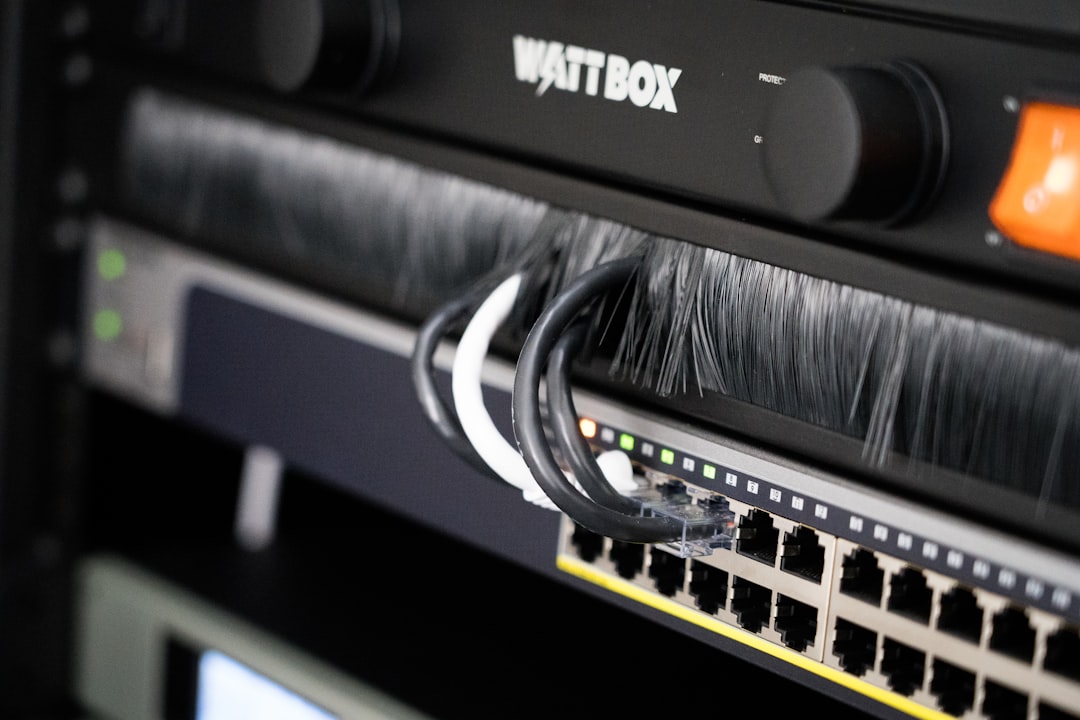
Restarting the router assigns a new IP address, which may remove security flags associated with the previous one.
Step 6: Try a Different Browser or Device
If the problem persists, switching environments may help determine whether the issue is browser-specific.
Users can try:
- Opening the site in another browser (Chrome, Firefox, Edge, Safari).
- Accessing the site on a smartphone instead of a computer.
- Using a different computer entirely.
If the error does not appear elsewhere, the problem is likely related to browser configuration rather than the website itself.
Step 7: Ensure JavaScript Is Enabled
Captcha systems depend heavily on JavaScript to function. If JavaScript is disabled in the browser, verification tools may not generate correctly.
To check:
- Open browser settings.
- Navigate to Site Settings.
- Confirm that JavaScript is enabled.
Once enabled, reload the page and attempt verification again.
Step 8: Wait and Try Again Later
Some systems impose temporary blocks after multiple failed attempts. This security measure protects against brute-force attacks.
If a temporary block is in place:
- Wait 15–60 minutes.
- Avoid repeated attempts during that time.
- Try again once the system resets.
Repeated attempts while blocked can extend the restriction period.
Step 9: Contact Customer Support
If none of the previous solutions work, the issue may be account-specific or server-related. In such cases, contacting the website’s support team is advisable.
Before reaching out, users should prepare:
- Screenshots of the error message
- Device and browser details
- Exact time the issue occurred
- Steps already attempted
Providing detailed information speeds up the resolution process.
Preventing the Error in the Future
While verification errors cannot always be avoided, adopting good online habits minimizes the chances of triggering security systems.
Best practices include:
- Entering login credentials carefully
- Avoiding repeated rapid submissions
- Keeping browsers updated
- Using stable internet connections
- Limiting the use of suspicious proxies or VPNs
Modern security systems rely on behavioral patterns. Normal browsing behavior rarely triggers captcha loops.
When the Error Indicates a Bigger Problem
In rare cases, persistent captcha errors may indicate:
- Account compromise attempts
- Malware infection
- IP address blacklisting
- Automated traffic running in the background
If unusual account activity is suspected, users should:
- Run a full antivirus scan.
- Change account passwords immediately.
- Enable two-factor authentication.
Taking proactive security measures ensures both account safety and uninterrupted access.
Conclusion
The “To Try Again Enter A1B2C3 Below” error is primarily a security safeguard rather than a system malfunction. Although it may appear repetitive and frustrating, it serves an important role in blocking automated threats and protecting user data. Fortunately, most causes—such as incorrect input, expired codes, cache conflicts, or network issues—are simple to fix.
By systematically following the troubleshooting steps outlined above, users can quickly restore access and reduce the likelihood of future occurrences. Whether refreshing the page, clearing cache, switching networks, or waiting out a temporary block, the solution is typically straightforward and requires minimal technical knowledge.
Frequently Asked Questions (FAQ)
1. What does “To Try Again Enter A1B2C3 Below” mean?
It means the website requires human verification, usually through a captcha code, after detecting unusual activity or a failed attempt.
2. Why does the captcha keep failing even when entered correctly?
This may be due to case sensitivity, expired codes, browser caching issues, or extension interference. Refreshing the page or clearing cache usually resolves it.
3. Can a VPN cause this error?
Yes. Some VPN IP addresses are flagged as suspicious, which can trigger repeated captcha requests. Disabling the VPN may help.
4. How long does a temporary block last?
Temporary locks usually last between 15 and 60 minutes, depending on the website’s security policy.
5. Is this error a sign that my account was hacked?
Not necessarily. However, if it happens repeatedly without clear cause, users should check account activity and update passwords as a precaution.
6. Does clearing cookies solve the problem?
In many cases, yes. Clearing cookies removes corrupted session data that may be preventing the captcha from validating properly.
7. What should be done if the issue continues after all fixes?
The best course of action is to contact the website’s support team with detailed information and screenshots of the error.
By understanding how captcha systems work and following structured troubleshooting steps, users can effectively resolve the “To Try Again Enter A1B2C3 Below” error and regain access without unnecessary frustration.


- How to Fix “To Try Again Enter A1B2C3 Below” Error - February 21, 2026
- Error Code 233011: Causes and Step-by-Step Solutions - February 20, 2026
- Best 7 Email Services For Creatives Who Manage Newsletters And Portfolios - February 19, 2026