
Modern PCs promise speed, convenience, and access to countless applications, but they also attract a growing ecosystem of unwanted software. One of the most common nuisances is PC App Store adware—programs that masquerade as helpful app marketplaces while quietly flooding your system with ads, tracking your behavior, and slowing everything down. Understanding how to identify and remove this type of adware is essential if you want better privacy, smoother performance, and peace of mind while using your computer.
TLDR: PC App Store adware often sneaks in through bundled downloads and fake software updates, causing intrusive ads and performance issues. You can spot it by watching for pop-ups, browser redirects, and unknown programs installed on your system. Removing it usually requires uninstalling suspicious apps, cleaning browsers, and running reputable security tools. With a few preventive habits, you can keep your PC cleaner, faster, and more private.
What Is PC App Store Adware?
PC App Store adware refers to a class of potentially unwanted programs (PUPs) that act like third-party application stores. They typically advertise themselves as a convenient way to discover new software, games, or system tools. Behind the scenes, however, their real purpose is often to generate advertising revenue and collect user data.
Once installed, these programs may inject ads into websites, display pop-up notifications, change your homepage or default search engine, and encourage you to download even more questionable software. While they are not always classified as outright malware, their intrusive nature and data collection practices make them a genuine threat to both privacy and system performance.
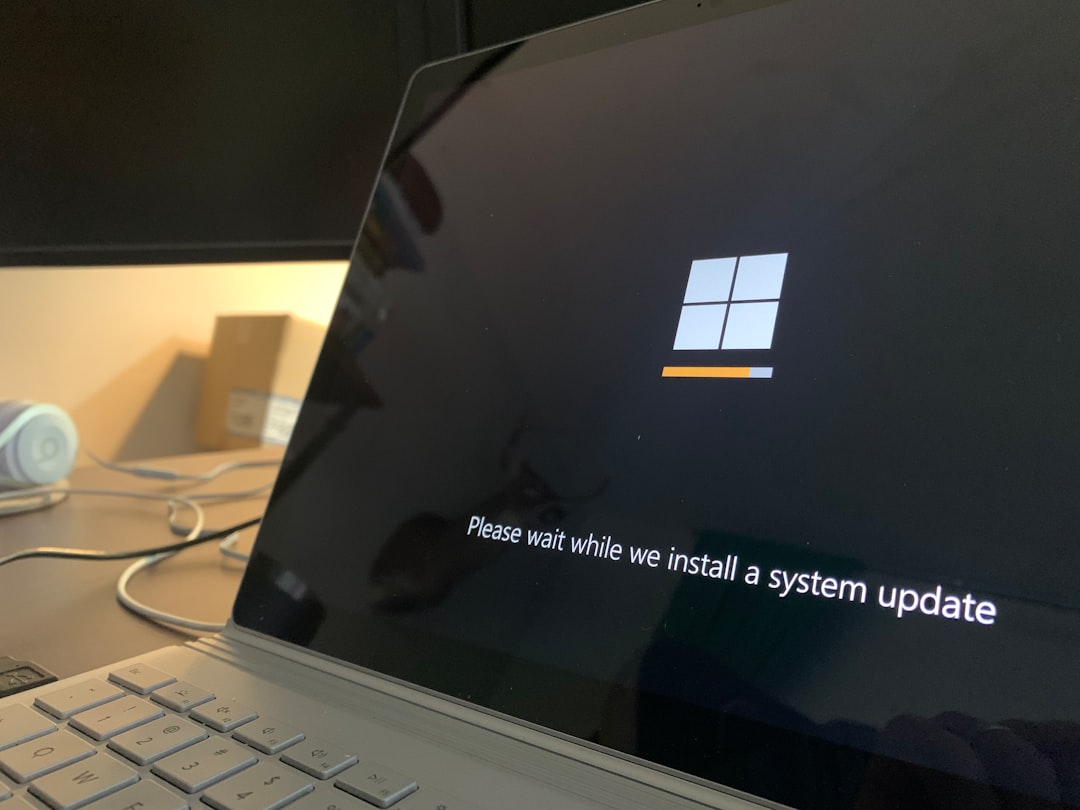
How PC App Store Adware Gets Installed
Understanding how adware enters your system is the first step toward avoiding it in the future. Most users do not install it intentionally. Instead, it sneaks in through methods that rely on inattention or misleading prompts.
- Bundled software: Free programs often include extra “offers” during installation. If you rush through the setup using default options, adware can be installed alongside the software you actually wanted.
- Fake updates: Pop-ups claiming your browser, media player, or system is out of date may lead to adware installations.
- Unofficial download sites: Third-party sites repack popular apps with their own installers that include adware components.
- Malicious ads: Clicking on deceptive online ads can trigger downloads that quietly install unwanted software.
Because these programs rely on social engineering rather than technical exploits, even experienced users can be caught off guard.
Common Signs Your PC Is Infected
PC App Store adware rarely announces itself clearly. Instead, it leaves behind a pattern of small but annoying changes that gradually degrade your experience. Learning to recognize these signs helps you act quickly.
- Frequent pop-up ads or banners appearing even when your browser is closed.
- New toolbars, extensions, or apps you do not remember installing.
- Your default browser or search engine changing without permission.
- Unusual system slowdowns, especially during startup.
- Increased network activity or background processes using CPU and memory.
If several of these symptoms appear at once, there is a strong chance adware is present and actively running on your system.
Why PC App Store Adware Is Bad for Privacy and Performance
At first glance, adware may seem like a minor annoyance. In reality, its impact goes much deeper. From a performance perspective, these programs often run continuously in the background, consuming RAM, CPU cycles, and internet bandwidth. This can lead to slower boot times, lag when switching between tasks, and even application crashes.
Privacy concerns are even more troubling. Many App Store-style adware programs collect browsing habits, search queries, installed software lists, and sometimes even location data. This information is typically shared with advertisers or data brokers, often without clear disclosure or meaningful consent. Over time, this creates detailed profiles of your digital behavior, exposing you to targeted ads and potential data misuse.

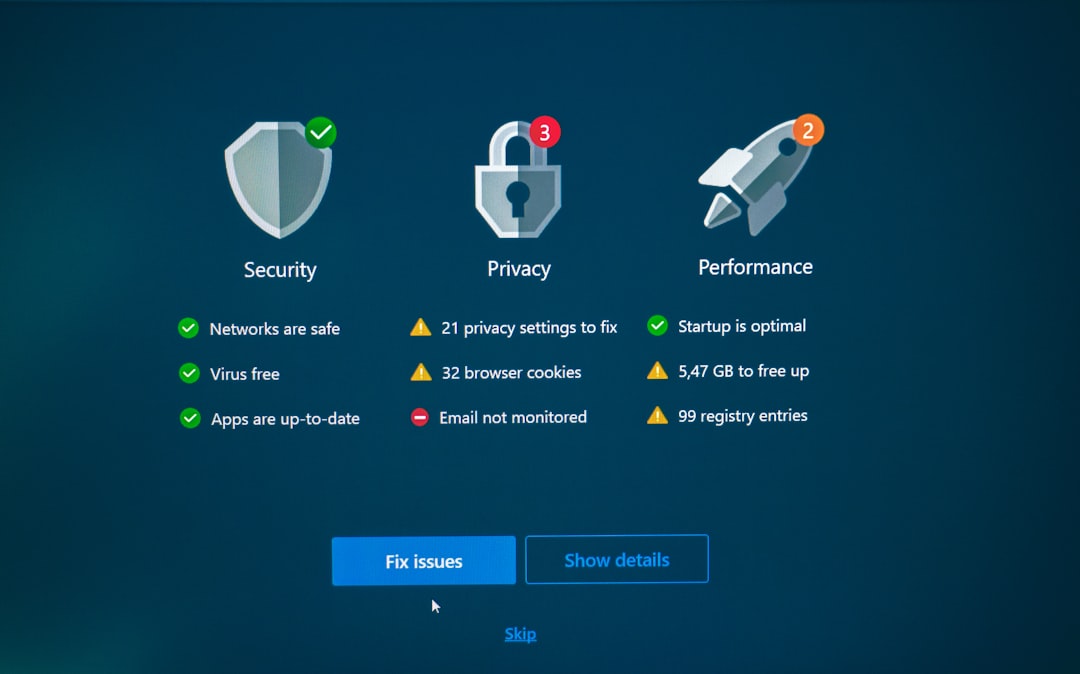
Step-by-Step: How to Remove PC App Store Adware
Removing adware does not have to be overwhelming. With a systematic approach, you can clean your PC and restore normal behavior.
1. Uninstall Suspicious Programs
Start by checking your installed applications list.
- On Windows, open Apps & Features or Programs and Features.
- Look for unfamiliar app stores, deal finders, or programs with generic names.
- Uninstall anything you do not recognize or no longer need.
2. Clean Your Browser
Adware often embeds itself in browsers through extensions and altered settings.
- Review installed extensions and remove unknown or suspicious ones.
- Reset your homepage and default search engine.
- Clear cookies and cached data to remove tracking remnants.
3. Use Reputable Anti-Adware Tools
Manual cleanup is helpful, but it may not catch everything. Trusted security tools can scan your system for hidden components, registry entries, and background services associated with adware.
Choose well-known anti-malware or security suites with strong reputations. Avoid tools that promise miracles or demand payment before showing any results, as they can sometimes be adware themselves.

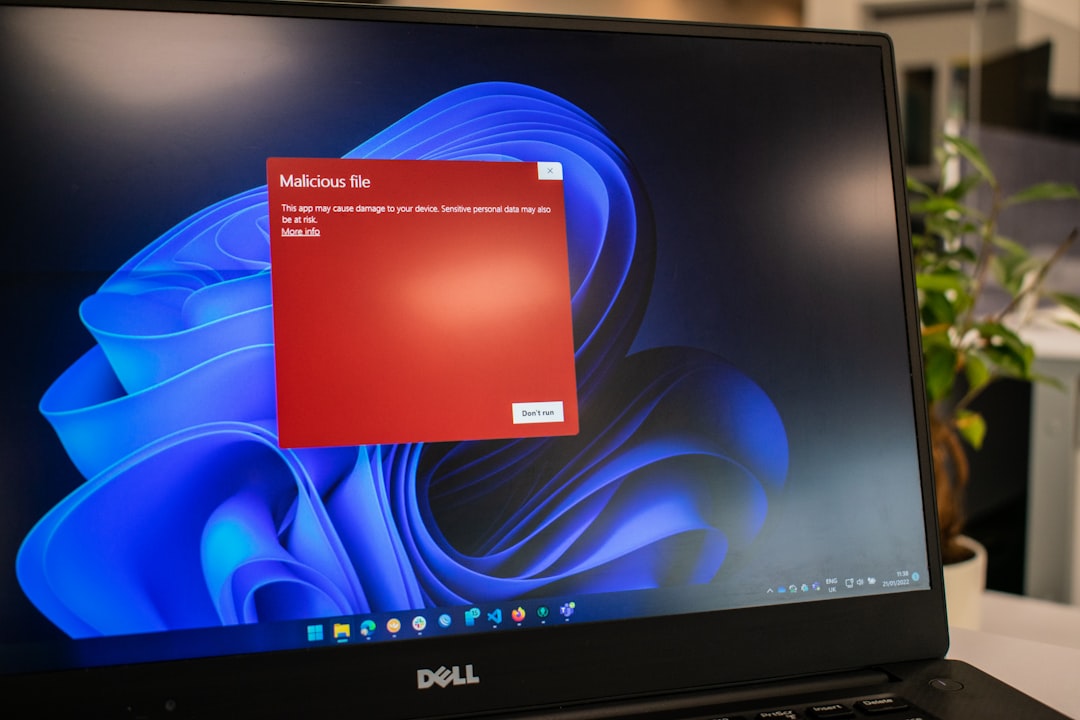
4. Check Startup Items and Background Processes
Adware frequently launches automatically when your PC starts.
- Open your system’s startup manager.
- Disable unfamiliar entries, especially those linked to removed programs.
- Monitor running processes for suspicious activity.
How to Prevent Future Infections
Once your system is clean, prevention becomes the priority. A few smart habits can greatly reduce the risk of adware returning.
- Choose custom installation options: Always select advanced or custom setup modes to deselect bundled offers.
- Download from official sources: Stick to developer websites or well-known app stores.
- Be skeptical of pop-ups: Legitimate updates rarely appear as random browser alerts.
- Keep software updated: Regular updates close security gaps that adware can exploit.
- Use reliable security software: Real-time protection can block suspicious installers before they run.
These preventive steps not only protect against PC App Store adware but also against other unwanted and malicious software.
The Long-Term Benefits of a Clean PC
Removing adware is about more than ending annoying pop-ups. A clean system runs faster, starts quicker, and feels more responsive overall. You regain control over your browser, reduce unnecessary data usage, and lower the risk of more serious infections that may piggyback on adware.
From a privacy standpoint, eliminating unwanted app stores and trackers means fewer companies watching what you do online. Over time, this leads to a more secure digital environment where your data stays closer to where it belongs—under your control.
By learning how to identify and remove PC App Store adware, you take an important step toward a healthier computing experience. With awareness, the right tools, and cautious habits, you can enjoy better performance and stronger privacy every day you use your PC.


- How To Identify And Remove PC App Store Adware For Better Privacy And Performance - February 10, 2026
- How The Shift From Hard Selling To Soft Influence Boosts Brand Engagement - February 7, 2026
- How Web3 Website Design Impacts Trust, Conversions, and User Adoption - February 6, 2026