
Montage Photo Frame: Best Tools to Create Photo Montages
Use Canva if you want the fastest montage photo frame, and use Adobe Express if you want a cleaner, more polished design. Canva says its free plan includes over 250,000 templates, which is why it is a great first stop for quick photo montages [source: Canva].
TLDR: A montage photo frame is a fun layout that turns many photos into one shareable design. For example, you can take 12 vacation photos and make a square Instagram post in about 10 minutes with Canva or Adobe Express. If you need a gift, use a printable template and export it at high quality. If you want wild stickers, filters, and goofy effects, Picsart is the party animal.

What Is a Montage Photo Frame?
A montage photo frame is one image made from several photos. Think birthday memories. Wedding smiles. Pet chaos. Baby photos. Food pics you swear were “for the memories.”
It can look neat and classy. It can also look loud and silly. Both are legal. No photo police will arrive.
The best ones do three things:
- Tell a story with your photos.
- Keep the layout clean so faces are easy to see.
- Match the mood, like romantic, funny, vintage, or bold.
1. Canva: Best for Most People
Canva is the easiest pick for most users. It has tons of collage and photo frame templates. You can drag photos into frames. You can change colors. You can add text. You can finish before your coffee gets cold.
It works well for:
- Birthday photo frames
- Wedding montages
- School projects
- Instagram posts
- Printable gifts
The best part is the grid system. Drop a photo in. Move it around. Done. The catch is that some of the nicest templates and graphics sit behind the Pro plan. That little crown icon can ruin your mood fast.
Best feature: easy drag and drop templates.
Biggest annoyance: premium pieces hide inside many designs.
Best for: beginners, families, small businesses, and anyone in a hurry.
2. Adobe Express: Best for Polished Designs
Adobe Express feels more refined. It is still simple. But the results often look a bit more “designer.” Use it when you want a clean photo montage for an invite, poster, or social post.
You can start from a template. Then add photos, shapes, logos, and text. It also works well with Adobe assets if you already use Adobe tools. Adobe says Express includes templates, stock photos, and quick design tools [source: Adobe].
Honestly, it feels like Adobe Express makes you click one extra time for small edits. Not awful. Just slightly annoying when you are fixing 18 photos at midnight.
Best feature: crisp layouts that look professional.
Biggest annoyance: some edits take more taps than expected.
Best for: invitations, posters, brand posts, and polished gifts.
3. Fotor: Best for Quick Collages
Fotor is great when you want speed. Open it. Pick a collage. Add photos. Adjust spacing. Export. Nice and simple.
It has montage styles for social media, posters, and greeting cards. It also has basic photo edits. You can brighten a face, crop a photo, or add a filter before placing it in the frame.
Fotor is not as playful as Picsart. It is not as template-rich as Canva. But it does the job without much fuss.
Best feature: fast collage creation.
Biggest annoyance: some templates feel a bit plain.
Best for: fast photo grids and simple framed montages.
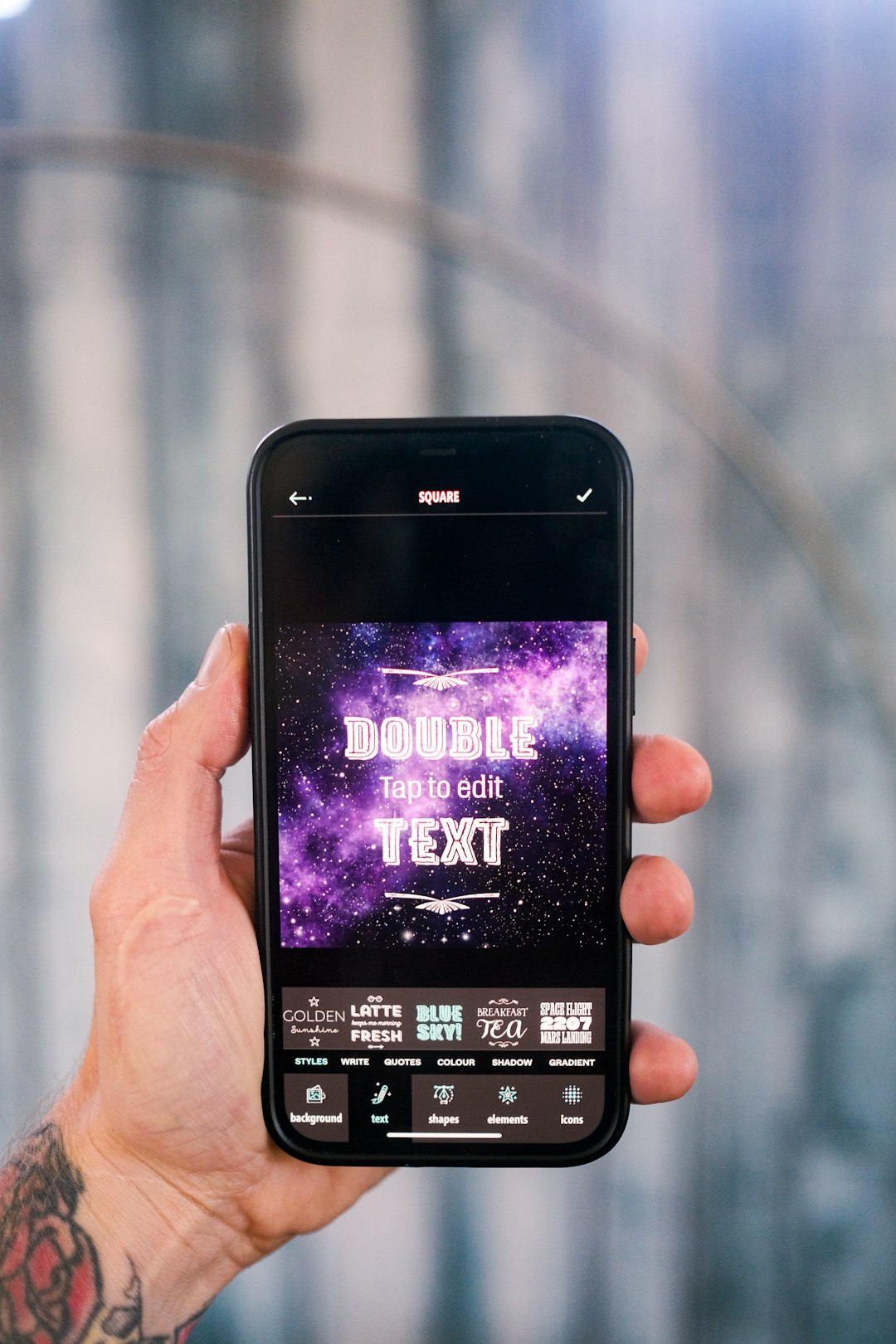
4. Picsart: Best for Fun Effects
Picsart is the tool that shows up wearing glitter shoes. It is not shy. It has stickers, filters, cutouts, text effects, and artsy frames.
Use Picsart when you want a montage that feels fun. Great for friend groups. Great for fan edits. Great for pet photos with sunglasses. Yes, your dog needs them.
The app is packed with features. That is good. Also a tiny bit messy. Expect to waste time on “just one more sticker.” Thirty minutes later, your cat has laser eyes.
Best feature: big creative effects library.
Biggest annoyance: the app can feel crowded.
Best for: social posts, memes, fan edits, and playful montages.
5. PhotoGrid: Best for Mobile Collages
PhotoGrid is made for phones. It is quick. It is simple. It is perfect when your photos are already on your mobile.
You can choose a grid, add photos, resize boxes, and share. It also includes backgrounds, stickers, and basic beauty tools. That makes it handy for party photos and selfies.
It is not the best for large print projects. For a wall frame, use Canva, Adobe Express, or Photoshop instead. But for a quick montage from your couch, PhotoGrid is very handy.
Best feature: quick mobile layouts.
Biggest annoyance: print control is limited.
Best for: phone users and quick social media posts.
6. Google Photos: Best for Simple Memories
Google Photos is not a full design tool. But it can create simple collages. It is useful if your photos already live there.
You select images. You create a collage. You save it. That is it. No drama. No glitter explosion. No wild text effects.
This is best for people who want a clean memory image without opening a design app. It is also good for family albums and quick sharing.
Best feature: easy access to stored photos.
Biggest annoyance: very limited design control.
Best for: simple memory collages.
7. Photoshop: Best for Total Control
Photoshop is the power tool. It gives you control over every pixel. You can create custom frames, masks, shadows, textures, and print-ready files.
But it is not the fastest choice. If all you need is a cute birthday montage, Photoshop may feel like using a truck to pick up one cupcake.
Use it when the design matters a lot. Use it for professional prints. Use it when you need exact sizes, advanced edits, or layered artwork.
Best feature: full creative control.
Biggest annoyance: slower learning curve.
Best for: pros, photographers, and serious print work.
How to Pick the Right Tool
Do not overthink it. Match the tool to the job.
- Need it fast? Use Canva or Fotor.
- Need it classy? Use Adobe Express.
- Need it funny? Use Picsart.
- Need it on your phone? Use PhotoGrid.
- Need it simple? Use Google Photos.
- Need full control? Use Photoshop.
Tips for a Better Montage Photo Frame
A good montage is not about using every photo you own. Please do not trap 87 images in one square. Nobody can see Aunt Linda in row six.
Try these simple tips:
- Use 6 to 15 photos for most designs.
- Pick one main photo as the star.
- Keep faces large enough to see.
- Use matching colors for borders and text.
- Do not mix too many filters. It gets weird fast.
- Leave some empty space. Your design needs air.
If you plan to print, use the highest export quality you can. Pick PDF Print, PNG, or high-quality JPG when available. For wall art, check the size before ordering. A tiny file will look sad on a big frame.

Best Tool by Use Case
- Birthday gift: Canva
- Wedding memory board: Adobe Express
- Funny friend collage: Picsart
- Travel recap: Fotor
- Quick phone montage: PhotoGrid
- Family memory share: Google Photos
- Professional print: Photoshop
Final Pick
Canva is the best all-around tool for a montage photo frame. It is fast, friendly, and packed with templates. Adobe Express is the best choice when you want a sleeker finish. Picsart is best when you want fun and chaos in equal measure.
Start with 10 good photos. Choose a template. Add a short title. Export it. Share it or print it. Then enjoy the rare feeling of finishing a creative project without yelling at your laptop.

- How Much Does Google Workspace Cost? 4 Business Productivity Plans Compared for Email, Storage, Collaboration, and Administration - November 13, 2026
- GlobalData Alternatives: 7 Market Intelligence Platforms for Industry Research, Company Profiles, and Competitive Analysis - November 13, 2026
- 7 Workforce Skills Intelligence Platforms Compared: Workera, Degreed, and Other Tools for Skills Mapping, Upskilling, and Career Development - November 13, 2026


