
Managing your digital accounts can be overwhelming, especially when you’re trying to access important services like your internet or cable provider online. If you’re a Suddenlink customer, having quick and secure access to your account can save you both time and frustration. Whether you want to pay your bill, modify your services, or check your usage, understanding how to log in smoothly is essential. In this comprehensive guide, we’ll walk you through everything you need to know to sign in to your Suddenlink account with ease.
TL;DR
This guide is your go-to resource for logging into your Suddenlink account effortlessly. We’ll break down the entire login process step-by-step, troubleshoot common issues, and explore tips for resetting your password or username. It’s ideal for both new users and existing customers who want a smoother experience. By the end, you’ll feel confident and in control of your Suddenlink online account access.
Why You Need a Suddenlink Account
Your online Suddenlink account is more than just a login page—it’s your central hub for managing your services. With an account, you can:
- Pay your bills online securely
- View and change your internet or TV plans
- Monitor service usage and equipment status
- Access customer support with chat or email
- Update personal or payment information
Given all the key features tied to your account, signing in successfully is the first step toward managing your services efficiently.
How to Access the Suddenlink Login Page
To begin, head over to the official Suddenlink website, which is now part of Optimum. The steps are as follows:
- Open your web browser and go to www.suddenlink.com.
- Click on the “Sign In” button located at the top-right corner of the homepage.
- You’ll be redirected to the Optimum login portal, where you will be asked to enter your user credentials.
Note: Suddenlink has been rebranded under Optimum in certain areas, so don’t worry if you’re redirected to a page with the Optimum branding—this is still the correct login portal for Suddenlink users.
Step-by-Step: Logging In to Your Suddenlink Account
Here’s how to log in smoothly:
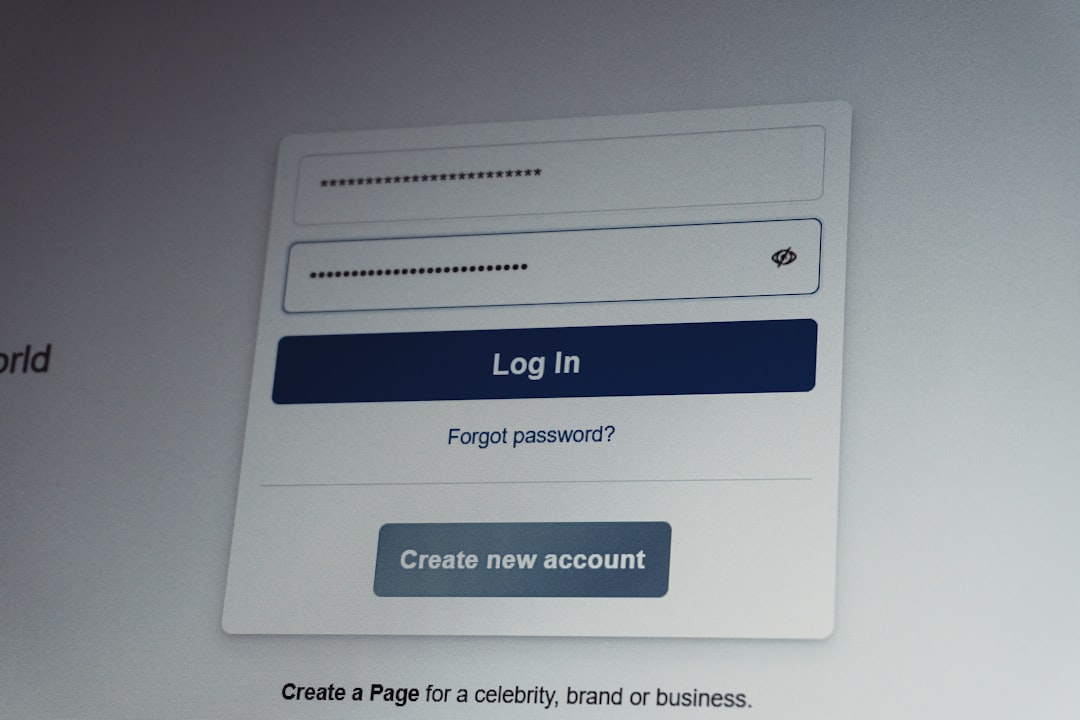
- Enter your username or Suddenlink email address. This is often the email address you used when setting up service.
- Type in your password. Make sure your caps lock is off and you enter your password correctly.
- Click “Sign In”. Once entered, you’ll be directed to your personal dashboard.
If you’ve forgotten your login information, don’t worry. The next section will help you recover access.
What If You Forgot Your Username or Password?
It’s a common issue, but Suddenlink makes recovery straightforward. Follow these steps:
To Reset Your Password:
- Go to the login page and click “Forgot Password?“
- Enter your username or the email associated with your account
- Follow the prompts sent to your inbox to create a new password
To Recover a Forgotten Username:
- Click on “Forgot Username?” beneath the login form
- Provide any required information such as your last name and account number
- Your username will be sent to the registered email address
Always check your spam or junk folder in case the recovery email mistakenly lands there.
Creating a Suddenlink Account for the First Time
If you’re a new customer or haven’t set up your online account yet, follow these steps:
- Visit the Suddenlink homepage and click on “Sign In“
- Click on “Create Account” or “Register“
- Enter your account number, zip code, and phone number associated with your account
- Choose a username and password, and set up recovery options
Make sure to select a password that is both strong and memorable. Consider using a mix of upper and lowercase letters, numbers, and symbols to keep your account secure.

Using the Suddenlink App for Mobile Login
For on-the-go access, the Suddenlink/Optimum mobile app is a convenient tool that allows you to:
- View and pay bills without logging in to your desktop
- Access live customer support
- Monitor internet usage at a glance
To use the app:
- Download the Optimum Support app from the App Store or Google Play
- Open the app and enter your login credentials
- Navigate through the dashboard just like you would on the website
Tip: Allow biometric login such as fingerprint or face recognition for quicker access next time.
Common Login Issues and How to Fix Them
Even with correct information, login issues can occur. Here’s how to handle the most frequent problems:
- Incorrect username or password: Double-check for typos, and verify that Caps Lock is off.
- Account locked: Too many failed attempts can lead to a temporary lock. Wait a few minutes and try again or reset your password.
- Browser issues: Try clearing your cache or switching to a different browser like Chrome or Firefox.
- Outdated links: Always use the official site to avoid being redirected to an old or fraudulent page.
Security Tips for Your Suddenlink Login
Since your Suddenlink account contains sensitive billing and service information, practicing good security habits is crucial. Here are a few tips:
- Always log out when using shared or public computers
- Don’t share your username or password with others
- Change your password every few months for added protection
- Enable two-factor authentication (if offered) to prevent unauthorized access
Contacting Suddenlink Support
If you’re unable to resolve your login issues on your own, Suddenlink offers several customer support options:
- Live Chat: Available on their website for real-time assistance
- Customer Service Phone Number: Call their toll-free number for help
- Support Forums: Browse community posts for tips and guides
Be ready with your account number or billing details to speed up the verification process when reaching out to a support representative.
Final Thoughts
Accessing your Suddenlink account shouldn’t be a hassle. Whether you’re managing your services, paying your bills, or just checking in, having a streamlined login experience can make all the difference. By following the steps and best practices outlined in this guide, you’ll make signing in to your Suddenlink account easier and more secure than ever.
Stay connected and in control—one login at a time.


- generalraspberry8102 Explained: Meaning, Practical Uses, and Why It’s Gaining Attention - January 10, 2026
- Top 4 Free & Open source Document Management System Software - January 9, 2026
- Australia Data Breach News: Regional Cybersecurity Updates - January 8, 2026