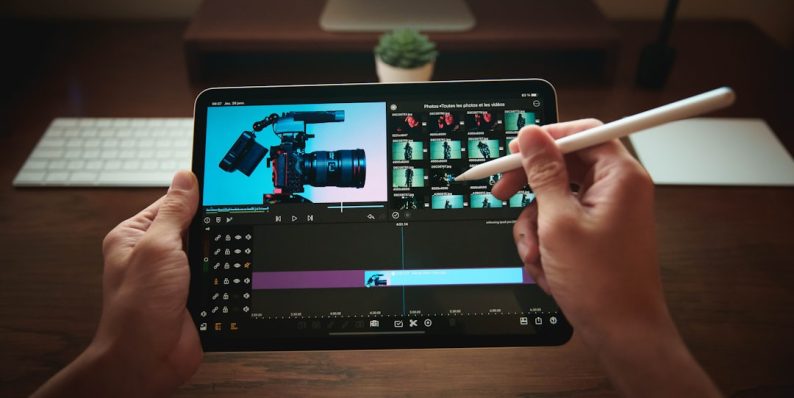
Top Reasons iMovie Crops My Videos on iPhone and How to Avoid It
Creating compelling videos on the go is easier than ever with apps like iMovie on the iPhone. Whether you’re documenting a family event or crafting a short film on the move, iMovie provides a user-friendly interface and robust editing tools. However, one persistent issue frustrates many users—cropped video clips that ruin framing, composition, or important details. Understanding why iMovie crops your videos and how to prevent this behavior is key to maintaining full creative control.
TL;DR: iMovie often crops your videos due to automatic aspect ratio adjustments and “Ken Burns” effects. This happens especially when importing videos that don’t match the project’s default aspect ratio, like vertical videos placed in horizontal timelines. Turning off automatic cropping features, adjusting aspect ratios manually, and exporting with consistent resolution can help avoid this issue. Understanding iMovie’s default behaviors is crucial for achieving your desired result.
Why Does iMovie Crop My Videos Automatically?
While iMovie boasts a sleek user interface, it makes several automatic decisions that can affect your editing outcome. One of the biggest culprits of cropped footage is the software’s attempt to scale or fit your media into your selected project format. Below are the main reasons why this happens:
1. Aspect Ratio Mismatch
iMovie for iPhone primarily uses a 16:9 aspect ratio for projects. When you import video clips shot in a different format—most often vertical 9:16 video—iMovie will try to adjust the footage to fit the project’s aspect ratio. This can result in automatic zooming or cropping, typically centered by default.
How to avoid it:
- Rotate your clip before importing to iMovie using the Photos app or a third-party app.
- Edit your videos using a template or project that matches your original video’s aspect ratio when possible.
- Use iMovie’s zoom (pinch to zoom) feature to manually reposition content after import.
2. iMovie’s “Crop to Fill” Default Setting
When a clip is placed on the timeline, iMovie often enables the “Crop to Fill” mode by default. This setting zooms into the video until it fills the screen, thereby removing outer edges of the footage and focusing on the center of the frame. While this can help eliminate black bars in some scenarios, it frequently removes important subjects from the view.
How to avoid it:
- Select your clip in the timeline and tap the magnifying glass icon.
- Choose “Fit” instead of “Crop to Fill” to maintain the original frame.
- Use manual adjustments (pinch and drag) for finer control.

3. The Ken Burns Effect
This cinematic panning and zooming effect is automatically applied to still images and sometimes to video clips in iMovie. While it can be visually engaging in certain projects, it can also result in unexpected cropping or movement if not manually adjusted.
How to disable it:
- Tap the clip in the timeline that shows unwanted movement.
- Click on the magnifying glass icon to open the zoom settings.
- Set “Ken Burns” to off or drag the Start and End frames to match each other, which cancels the motion.
Understanding How iMovie Interprets Source Footage
Even when you’re recording with the iPhone’s camera, videos can vary in resolution and orientation. iMovie tends to simplify workflows by standardizing them—but this comes at the cost of nuanced control. Here’s what’s happening behind the scenes:
- Orientation Detection: If your video was shot in portrait but was held slightly skewed, iMovie might misinterpret its orientation, causing unwanted correction or cropping.
- Resolution Scaling: If your video is in 4K and your project is set to 1080p, iMovie may crop content slightly while down-scaling, especially if using the Crop to Fill setting.
Tip: Always record your footage in the orientation you intend to use for the final video. Double-check orientation by viewing your clip in the Photos app before importing it into iMovie.
Best Practices to Keep Your Videos Uncropped in iMovie
Now that we understand why videos get cropped, let’s explore a set of proactive strategies to stop this from happening in the first place:
1. Preview and Edit Before Import
Review your clips and make basic edits such as rotation or cropping outside of iMovie, using the iPhone’s built-in Photos app or a third-party tool like InShot. Doing this gives you an initial layer of control before iMovie gets involved.
2. Use Manual Zooming and Positioning
Once your clip is in the timeline, pinch to zoom in or out and drag the frame to properly align it. This manual control overrides most of iMovie’s auto-cropping features.
3. Match Project to Source Video
iMovie Apple’s mobile version doesn’t let you manually set a project resolution or aspect ratio before you begin your project—yet. But you control it indirectly through the first clip you add. If it’s vertical, the rest of your project will keep that aspect ratio.
Tip: Always add your main clip—the one you want the project format to follow—first to the timeline. This will set the tone for the entire project’s aspect ratio.
4. Update to the Latest Version
Apple continuously updates iMovie with minor bug fixes and feature enhancements. Ensuring you’re always on the latest version gives you access to the newest tools and helps mitigate cropping bugs or anomalies related to older formats.
5. Review Each Clip for Cropping Indicators
Some clips might behave differently even in the same timeline. Always review each clip after adding it. If it appears zoomed or off-center:
- Select the clip by tapping on it in the timeline.
- Use the magnifying glass tool to adjust the frame mode to “Fit” or resize manually.

Alternatives to iMovie That Offer Greater Cropping Control
If you do a lot of mobile video work and repeatedly run into cropping issues, you might consider alternatives to iMovie that offer more granular control over video dimensions and positioning:
- VN Video Editor: Free, easy to use, and supports manual aspect ratio locks.
- KineMaster: Professional-level controls for cropping, keyframing, and layer positioning.
- LumaFusion: Full-featured powerful editor favored by mobile video professionals.
These tools are not perfect substitutes but offer a broader feature set if you frequently encounter iMovie’s limitations.
Conclusion
iMovie is an invaluable tool for iPhone users looking to quickly and effectively create polished video content. However, its default settings often lead to unwanted cropping, especially when dealing with videos that don’t match the project’s assumed aspect ratio. Fortunately, with a little knowledge and proactive effort, you can regain control over your content’s framing and preserve the footage exactly as you intended.
Understanding iMovie’s automatic behaviors, manually adjusting aspect ratios, and utilizing third-party apps when necessary can prevent frustrating cropping issues. Armed with these strategies, you can create cleaner, more accurate videos without sacrificing any part of your shot.

- How Much Does Google Workspace Cost? 4 Business Productivity Plans Compared for Email, Storage, Collaboration, and Administration - November 13, 2026
- GlobalData Alternatives: 7 Market Intelligence Platforms for Industry Research, Company Profiles, and Competitive Analysis - November 13, 2026
- 7 Workforce Skills Intelligence Platforms Compared: Workera, Degreed, and Other Tools for Skills Mapping, Upskilling, and Career Development - November 13, 2026


