
You try to open a PDF, and Adobe Acrobat throws a message saying “a running instance of Acrobat caused an error.” The file doesn’t open. Sometimes nothing happens at all. It can block your work, especially if you need to read, edit, print, or sign a PDF file. This problem usually relates to a background process conflict in Windows 10 or Windows 11.
Below, you’ll learn what this error means, why it appears, and seven practical fixes you can apply step by step.
What Does “A Running Instance of Acrobat Caused an Error” Mean?
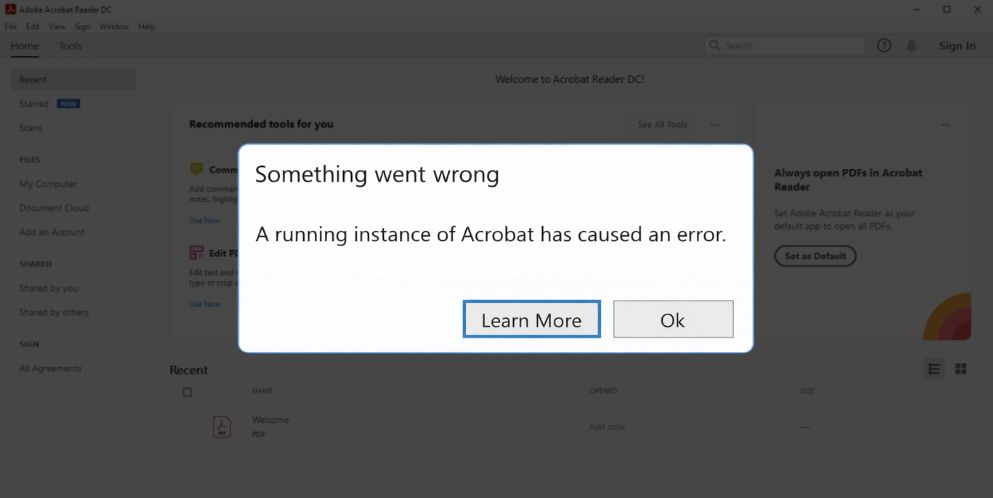
This error means Adobe Acrobat or Adobe Acrobat Reader is already running in the background. The main process, often called Acrobat.exe, may still be active even if no window is visible. When you double-click a PDF file, Windows tries to open a new session of Acrobat. However, if the previous session did not close properly, the system blocks it.
This creates a conflict between the existing background process and the new request. In some cases, low system memory or locked PDF resources make the issue worse. The operating system prevents duplicate instances to protect system stability and file integrity.
You usually see this message when opening a PDF from File Explorer, after a system crash, or while trying to save or print a document.
Common Causes of This Acrobat Error
This error usually appears because Acrobat is stuck in the background or Windows cannot properly close the previous session. Below are the most common causes.
- Acrobat.exe process still running in Task Manager
- Corrupted temporary files from a previous session
- Outdated Adobe Acrobat or Adobe Acrobat Reader version
- Protected Mode security conflict inside Acrobat settings
- Antivirus software blocking proper shutdown
- Low RAM or high system resource usage
- Corrupted installation files or registry conflict
How to Fix A Running Instance of Acrobat Caused an Error
In most cases, the solution involves stopping the background process or repairing the software installation. Start with simple fixes before reinstalling anything.
Fix #1: End Acrobat Process in Task Manager
If Acrobat.exe is stuck in memory, you need to close it manually.
Follow the steps below to easily end the background process.
- Press Ctrl + Shift + Esc to open Task Manager.
- Look for Adobe Acrobat or Acrobat.exe.
- Select it.
- Click End Task.
- Close Task Manager and reopen your PDF.
This forces Windows to clear the blocked session.
Fix #2: Restart Your Computer
Sometimes Windows keeps processes active even after closing programs.
Try these simple steps to restart your system.
- Click Start.
- Select Power.
- Click Restart.
- Wait for Windows to load fully.
A restart clears background processes and resets system memory.
Fix #3: Disable Protected Mode in Acrobat
Adobe Acrobat includes a security feature called Protected Mode. In rare cases, it causes startup conflicts.
Here are the following steps which help you to disable Protected Mode.
- Open Adobe Acrobat.
- Click Edit.
- Select Preferences.
- Go to Security Enhanced.
- Uncheck “Enable Protected Mode at startup.”
- Restart Acrobat.
After disabling it, test the PDF again.
Fix #4: Repair Adobe Acrobat Installation
Adobe includes a built-in repair tool that fixes damaged program files.
The following steps will show you how to repair the installation properly.
- Open Adobe Acrobat.
- Click Help.
- Select Repair Installation.
- Confirm the repair process.
- Restart your computer after completion.
Repairing replaces corrupted files without removing your settings.
Fix #5: Update Adobe Acrobat
An outdated version may contain bugs that cause instance conflicts.
Follow these easy instructions to update Acrobat.
- Open Adobe Acrobat.
- Click Help.
- Select Check for Updates.
- Install any available updates.
- Restart the program.
Updates often resolve compatibility issues with Windows 11 or Windows 10.
Fix #6: Run Acrobat as Administrator
Permission issues can prevent proper process control. Right-click the Adobe Acrobat shortcut and select Run as administrator. This gives the application elevated system access. It helps Windows manage file associations, temporary files, and registry settings correctly. After launching it in administrator mode, try opening the PDF again. Many users resolve launch errors this way.
Fix #7: Reinstall Adobe Acrobat
If the problem continues, a fresh installation may solve corrupted file or registry issues.
Perform the following steps carefully to reinstall Acrobat.
- Open Control Panel.
- Click Programs and Features.
- Uninstall Adobe Acrobat.
- Restart your PC.
- Download the latest version from the official Adobe website.
- Install and test again.
A clean installation removes damaged components completely.
Prevention Tips to Avoid Acrobat Instance Errors
Proper system maintenance reduces the chance of process conflicts. Close Adobe Acrobat properly before shutting down your PC. Keep the software updated. Avoid forced shutdowns during PDF editing. Regular system restarts help clear memory and background processes.
- Always close Acrobat before shutting down
- Keep Adobe Acrobat updated
- Avoid ending system tasks randomly
- Run antivirus scans regularly
- Clear temporary files occasionally
- Restart Windows weekly
- Maintain enough free RAM and storage
Conclusion
In short, this error means Adobe Acrobat is already running in the background and Windows cannot start a new session. The main causes include stuck processes, corrupted files, outdated software, or permission conflicts. Fortunately, most fixes are simple and take only a few minutes.
Go through each solution step by step. Test Acrobat after every fix. If the error still appears, contact Adobe Support through the official website for deeper troubleshooting. If this guide helped you, share it with others who may face the same PDF issue.


- Fix “A Running Instance of Acrobat Caused an Error” on Windows? - February 19, 2026
- How to Fix unarc.dll Error Code 11 on Windows? Solution Guide - February 12, 2026
- How to Fix “Sorry There Was an Error Licensing This Video” on YouTube? - February 12, 2026