
When Jellyfin plugins stop loading, it feels annoying fast. You open the dashboard, expect new plugins, and instead see nothing. Sometimes installs fail. Sometimes updates don’t show. This matters because plugins add features, fix gaps, and keep your media server useful. When this breaks, things feel stuck. This guide explains what this issue means, why it happens, how to fix it step by step, and how to stop it from coming back later.
What Is Jellyfin Plugin Repositories Not Working?
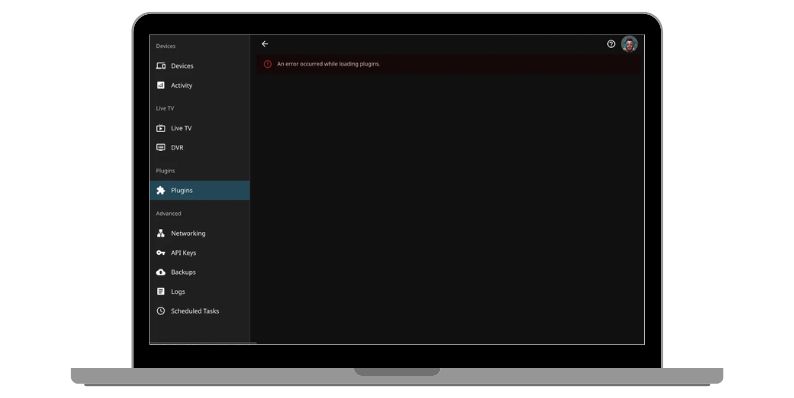
Jellyfin plugin repositories not working means the Jellyfin server cannot reach or load its plugin source. Jellyfin normally connects to external servers to fetch plugin lists, version details, and update data. This data comes in a structured format and fills the plugin catalog you see in the dashboard. When the connection fails, Jellyfin cannot display available plugins or process updates. This problem affects plugin management, not media playback, not libraries, and not streaming quality. The core issue sits between the Jellyfin server and the plugin repository endpoint.
You usually notice this problem inside the Jellyfin web dashboard. The plugin section may appear empty, plugins may fail to install, or updates never complete. In some setups, error messages also appear in Jellyfin logs. This shows up on Linux servers, Docker containers, NAS devices, and even Windows installs.
Common Causes of Jellyfin Plugin Repositories Not Working
This issue can happen for several reasons. The exact cause depends on your Jellyfin version, your network setup, and how the server connects to the internet. Most causes are technical, not user mistakes. Many are also easy to fix once you know where to look.
- An outdated Jellyfin server that no longer supports current plugin repository formats
- A plugin repository URL that changed or was removed
- DNS resolution problems blocking access to repository servers
- SSL or HTTPS certificate validation failures
- Firewall rules blocking outbound connections from Jellyfin
- IPv6 routing conflicts on the host system
- Corrupted plugin cache or Jellyfin configuration files
How to Fix Jellyfin Plugin Repositories Not Working?
Fixes depend on both server settings and network behavior. In most cases, you only need one or two changes. Start simple. Test after each fix. This helps you avoid breaking working parts of your setup.
Fix #1: Update Jellyfin to the Latest Stable Version
Older Jellyfin versions sometimes fail to read newer plugin repository data. Plugin metadata formats change over time. When the server stays outdated, compatibility breaks. Updating Jellyfin refreshes internal components that handle plugin communication, including network requests and data parsing.
After updating, Jellyfin usually reloads plugin repositories automatically. The plugin catalog often reappears without further action.
Follow the steps below to easily update Jellyfin:
- Open the Jellyfin dashboard
- Check your current version under system information
- Download the latest stable release from the official Jellyfin site
- Install the update using your platform’s standard method
- Restart the Jellyfin server
Fix #2: Reset Plugin Repository Configuration
Plugin repository data can become stale or damaged over time. This happens after failed updates, interrupted downloads, or sudden restarts. When this data breaks, Jellyfin keeps trying to load bad information. Resetting the repository forces Jellyfin to request fresh metadata from the source.
Once reset, Jellyfin rebuilds the plugin list and removes broken cache entries.
Here’s how you can reset the plugin repository in just a few seconds:
- Open the Jellyfin dashboard
- Go to plugins settings
- Remove existing repository entries if present
- Save changes
- Restart Jellyfin
- Reopen the plugin section
Fix #3: Check DNS and Network Connectivity
Jellyfin depends on DNS to locate plugin servers. If DNS fails, Jellyfin cannot reach repository URLs. This often happens with custom DNS settings, ISP filters, or network changes. Even when browsing works, server-side DNS can still fail silently.
Fixing DNS restores proper name resolution. Once resolved, plugin repositories usually load without delay.
Try these simple steps to quickly check your network settings:
- Test internet access on the server itself
- Switch DNS to a public provider like Google or Cloudflare
- Restart network services
- Restart Jellyfin
- Reload the plugin catalog
Fix #4: Disable Firewall, Proxy, or IPv6 Temporarily
Sometimes firewalls block outbound traffic from Jellyfin. Proxies can also interfere with secure connections. IPv6 routing can cause silent failures on some systems. This test helps identify the cause. Disable these features briefly, reload plugins, and check results. If repositories load, you’ve found the source of the problem.
Fix #5: Clear Jellyfin Plugin Cache and Restart
Jellyfin stores plugin metadata locally to speed things up. Over time, this cache can break. When corrupted, Jellyfin keeps loading broken data. Clearing the cache removes this stored information and forces a clean rebuild.
After clearing the cache, Jellyfin fetches fresh plugin data and rebuilds the catalog.
These are the exact steps you need to follow to clear the plugin cache successfully:
- Stop the Jellyfin server
- Locate the Jellyfin plugin cache directory
- Delete the plugin cache files
- Start Jellyfin again
- Open the plugin section
Prevention Tips to Avoid Jellyfin Plugin Repository Issues in the Future
Preventing this problem saves time and frustration, especially on always-on media servers. Small habits make a big difference.
- Keep Jellyfin updated to the latest stable release
- Avoid adding unmaintained third-party plugin repositories
- Use stable DNS providers
- Review Jellyfin logs after updates
- Restart the server occasionally
- Avoid strict firewall rules unless needed
- Back up Jellyfin configuration files before changes
Conclusion
To summarize, Jellyfin plugin repositories stop working when the server cannot reach or process plugin data. Common causes include outdated versions, DNS issues, network blocks, and corrupted cache files. The good news is that most cases have simple fixes.
Try the steps calmly and one at a time. If the issue keeps coming back, check Jellyfin community forums or official documentation for deeper help. If this guide helped you, share it with others running Jellyfin. Leave a comment too. Your setup details might help someone else fix the same problem.


- How to Fix unarc.dll Error Code 11 on Windows? Solution Guide - February 12, 2026
- How to Fix “Sorry There Was an Error Licensing This Video” on YouTube? - February 12, 2026
- How to Fix Jellyfin Won’t Play Media? - January 28, 2026