
When Jellyfin won’t play media, it quickly ruins the whole experience. You open a movie or song, press play, and nothing happens. Sometimes the screen stays black. Sometimes it just keeps loading. This matters because Jellyfin is meant to stream your content smoothly, not block it. The good news is that this problem is usually fixable.
This guide explains what the issue means, why it happens, how to fix it step by step, and how to stop it from coming back.
What Is “Jellyfin Won’t Play Media”?
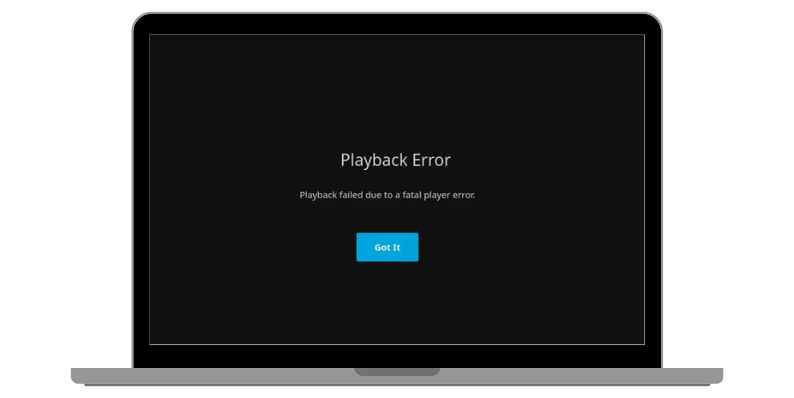
Jellyfin won’t play media means the server can see your media files but fails during playback. The Jellyfin playback engine cannot decode, stream, or transcode the file correctly. Jellyfin relies on tools like FFmpeg, media codecs, and client support to play content. If any of these parts fail, playback stops. This issue does not mean your library is broken. It means Jellyfin cannot process the file into a playable stream for your device.
You usually notice this issue when a video shows a black screen, audio fails to start, or playback gets stuck loading. It happens on the web player, mobile apps, smart TVs, and desktop browsers. Some files may work while others fail.
Common Causes of Jellyfin Media Playback Failure
Media playback depends on many moving parts working together. The server, the client device, and the media file itself all matter. When one part fails, playback stops. Most causes are common and easy to verify.
-
Missing or broken FFmpeg installation
-
Unsupported video or audio codec
-
Hardware acceleration enabled but misconfigured
-
Client device does not support the media format
-
GPU driver problems on the server
-
File permission or path access errors
-
Network speed too slow for transcoding
How to Fix Jellyfin Won’t Play Media?
Playback fixes depend on both server settings and the device you are using. Start with simple checks first. Test one fix at a time. This makes it easier to find the real cause without breaking working parts of your setup.
Fix #1: Check FFmpeg Installation
Jellyfin uses FFmpeg to decode and transcode media. If FFmpeg is missing, outdated, or broken, Jellyfin cannot play many formats. This is one of the most common causes of playback failure. Without FFmpeg, Jellyfin has no way to convert media files into streams that browsers and apps understand.
Once FFmpeg works correctly, Jellyfin can process video and audio again, and playback usually starts immediately.
Follow the steps below to check FFmpeg:
-
Open the Jellyfin dashboard
-
Go to playback or transcoding settings
-
Check if FFmpeg is detected
-
Verify the FFmpeg path is correct
-
Restart Jellyfin after changes
Fix #2: Disable Hardware Acceleration Temporarily
Hardware acceleration uses your GPU to speed up video processing. Sometimes it causes more problems than it solves. Driver issues, unsupported GPUs, or container limits can break playback completely. Jellyfin may fail silently when this happens.
After disabling hardware acceleration, Jellyfin switches to software transcoding. Playback becomes slower but more stable.
Try these simple steps to disable hardware acceleration:
-
Open Jellyfin dashboard
-
Go to playback settings
-
Turn off hardware acceleration
-
Save changes
-
Restart Jellyfin
Fix #3: Test Direct Play vs Transcoding
Jellyfin can either direct play a file or transcode it. Direct play sends the file as is. Transcoding converts it. Many playback errors happen during transcoding, not direct play. Testing this helps narrow down the problem.
If direct play works but transcoding fails, the issue is codec support, FFmpeg, or hardware acceleration.
Here’s how you can test direct play settings:
-
Open Jellyfin playback settings
-
Enable direct play
-
Disable forced transcoding
-
Play the same media again
-
Check if playback starts
Fix #4: Check Media Codec Compatibility
Some media formats simply do not work on certain devices. Older browsers and TVs cannot play newer codecs like HEVC or uncommon audio formats. Jellyfin cannot fix client limits.
Try converting one file to a common format like H.264 with AAC audio. If that file plays, codec compatibility is the issue.
Fix #5: Try a Different Client or Browser
Playback problems can be client-specific. A video may fail on a browser but work on a mobile app. This happens because each client supports different codecs and streaming methods.
When playback works on another device, the server is fine. The issue sits on the client side.
Follow these easy instructions to test another client:
-
Open Jellyfin on a different browser or device
-
Play the same media file
-
Compare the result
-
Note which client works
Fix #6: Verify File Permissions and Paths
Jellyfin must be able to read media files directly. On Linux, Docker, or NAS systems, permission errors are common. If Jellyfin cannot access the file, playback fails even if the library shows the item.
After fixing permissions, Jellyfin gains proper file access and playback resumes.
Perform the following steps carefully to check file access:
-
Confirm the media path exists
-
Check read permissions for Jellyfin user
-
Verify Docker volume mappings if used
-
Restart Jellyfin
Fix #7: Check Jellyfin Logs for Playback Errors
Jellyfin logs show exactly why playback fails. Codec errors, FFmpeg failures, and permission issues appear there. Logs remove guesswork and save time.
Once you identify the error message, you can apply the correct fix instead of guessing.
These are the steps you need to follow to view Jellyfin logs:
-
Open the Jellyfin dashboard
-
Go to logs or server logs
-
Play the media again
-
Read the latest error entries
Prevention Tips to Avoid Jellyfin Playback Issues
Preventing playback problems keeps your server stable and stress free. Small habits help a lot.
-
Keep Jellyfin and FFmpeg updated
-
Use common video and audio formats
-
Avoid unstable GPU drivers
-
Test playback after updates
-
Monitor server logs regularly
-
Back up settings before changes
-
Use devices that support direct play
Conclusion
In short, Jellyfin won’t play media when it cannot decode, transcode, or stream a file correctly. Common causes include FFmpeg issues, codec limits, hardware acceleration conflicts, and file access problems. Most of these are easy to fix once identified.
Try the fixes one by one and stay patient. If the issue continues, check Jellyfin community forums or official documentation for deeper help. If this guide helped you, share it with others and leave a comment. Your experience might help someone else fix the same problem.


- How to Fix unarc.dll Error Code 11 on Windows? Solution Guide - February 12, 2026
- How to Fix “Sorry There Was an Error Licensing This Video” on YouTube? - February 12, 2026
- How to Fix Jellyfin Won’t Play Media? - January 28, 2026