Why Some Games Crash Right After Installing — Common Issues with Drivers, Windows Updates, Permissions & Store-Linked Launchers in 2025
Modern PC gaming has become more accessible than ever, thanks to widespread digital distribution, improved hardware affordability, and a huge ecosystem of indie and AAA titles. Yet one frustrating issue continues to plague many users in 2025: some games crash immediately after installation. Whether you’re launching a brand-new title or an old favorite, the excitement turns to confusion and disappointment when the program closes with no explanation. Knowing why this happens can save gamers both time and stress.
TLDR
Game crashes immediately after installation are often due to a handful of persistent causes — outdated or incompatible graphics drivers, missing or pending Windows updates, insufficient permissions, or problems related to launchers like Steam, Epic, or Xbox Game Pass. In most cases, one of these areas is either misconfigured or not ready to handle the execution of a newly installed game. Running diagnostic tools, updating system software, and verifying install conditions can resolve most of these launch failures. While sometimes the problem is on the game developer’s end, users can eliminate many variables with basic troubleshooting first.
1. Graphics and Audio Drivers: The Number-One Culprit
A significant percentage of crash reports stem from outdated or incorrect graphics card drivers. Games utilize the GPU for rendering, and any mismatch between driver capability and game requirement can lead to immediate crashing. In 2025, frequent updates from NVIDIA, AMD, and Intel ensure higher performance and compatibility — but only if the drivers are installed properly.
Common graphics driver issues include:
- Installing the wrong driver version (e.g., laptop vs desktop)
- Using Windows Device Manager for updates instead of manufacturer websites
- Drivers not fully removed before upgrading cards or switching brands
Solution: Use a clean install tool like DDU (Display Driver Uninstaller) to remove old drivers completely. Then manually download the latest version from the GPU manufacturer and install it with admin rights.
Audio drivers can also clash with games, especially those using spatial audio or custom sound engines. Ensure that sound drivers are up-to-date and avoid proprietary software that overrides default audio paths unless necessary.
2. Windows Updates: Stability Before Playability
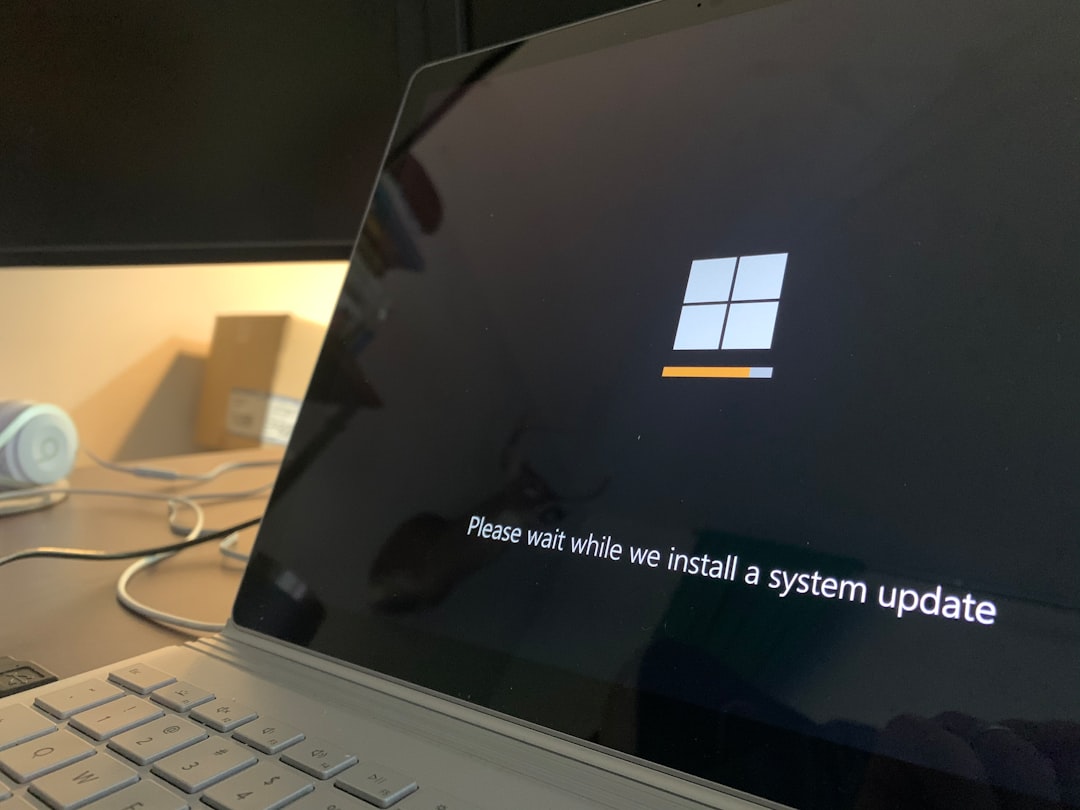
Windows 11 and beyond frequently push security, performance, and compatibility updates designed to support the latest software — including games. However, systems missing critical updates may lack foundational components like new DirectX versions, updated C++ redistributables, or improved scheduler support.
Signs that Windows updates might be the issue:
- Game installs but won’t run — no error message
- Other new software also fails or has graphical glitches
- System logs show kernel errors when launching software
Solution: Go to Settings > Windows Update and click “Check for updates.” If updates fail, use Microsoft’s troubleshooting tool or manually download cumulative updates from the Update Catalog. Always restart after updates before running a newly installed game.
3. User Permissions and Execution Rights
Many games require elevated privileges to access certain files, modify system folders, or run anti-cheat engines. In Windows, if a game is installed under a user account lacking Administrator rights, or if folder permissions are misconfigured, the launch process might halt abruptly.
Permissions-related causes include:
- Game folder installed in a restricted path
- Executable lacking run-as-admin rights
- Anti-virus software blocking executable behavior
Solution: Right-click the game’s launch icon and select “Run as Administrator.” If this resolves the issue, right-click again, open Properties > Compatibility, and check “Run this program as an administrator” permanently. Additionally, add the game to your antivirus exceptions list.
Beware of controlled folder access on Windows Defender, which can silently block new apps from writing to disk. If enabled, you may need to grant explicit permissions for the game executable to function properly.
4. Store-Linked Launchers: Epic, Xbox, Steam & DRM Glitches
As more games rely on online ecosystems such as Steam, Epic Games Launcher, Xbox Game Pass, or Ubisoft Connect, another layer of complexity arises. Launcher-specific integrations can be the very reason a game refuses to open — either due to bad user linkage, corrupted game cache, or mismanagement of cloud save states.
Some of these problems manifest as:
- Game flashes a logo and then exits silently
- Launcher fails to verify ownership or license properly
- Multiple versions (e.g., Steam vs. Microsoft Store) conflicting due to shared save or registry states
Solution: Clear the launcher’s cache and logout/login again. For Steam, verify game integrity under the game’s Properties. For Xbox Game Pass, use the Xbox App Repair Tool and ensure the latest Gaming Services version is installed. Avoid launching games from desktop shortcuts if they’re tied to launcher chains — open from within the launcher itself.

5. File Corruption or Incomplete Installation
Even with fast internet speeds in 2025, improperly downloaded or partially failed installations still happen — especially during large day-one patches. Corrupted files, missing directories, or failed dependency checks can lead to immediate crash-to-desktop behavior. While launchers usually include verification tools, not every storefront reports failures clearly.
To identify installation-related crashes:
- Game folder is unusually small or missing files
- Repeated crashes in the same spot, every time
- Error logs referencing missing DLLs or assets
Solution: First, attempt to verify or repair the installation using the platform’s built-in tool. If unsuccessful, completely uninstall the game, then re-download it. Be cautious with interrupted downloads or performing other tasks during install, especially on mechanical HDDs, which are still in use by many budget users.
6. Hardware or OS Incompatibility
While less common, it’s important to confirm that the game supports your hardware and OS version. As minimum system requirements continue to rise, some players unknowingly try to run titles on unsupported CPUs, GPUs, or even Windows editions (such as Windows 11 N or Enterprise LTSC, which may lack standard media codecs or drivers).
Combat this by:
- Checking official game requirements before purchase
- Ensuring Windows edition is standard consumer or Pro
- Installing optional OS features like .NET, DirectPlay, Media Pack, etc.
Also, consider virtualization and software conflicts. If using sandbox environments, overlays, or emulators, disable them before running the game to check if a native launch resolves the issue.
Final Thoughts: Prevention Through Preparation
In 2025, game developers and platform holders are doing more than ever to streamline the gaming experience — but the nature of the PC ecosystem means that some crashes will continue to occur after installation. By keeping your OS up to date, installing correct drivers, managing permissions wisely, and understanding how launchers behave, you can preempt most of the problems that cause immediate game crashes.
When in doubt, consult crash logs, review support forums, and explore community discussions — chances are, someone else has encountered the same problem and discovered a workaround. With patience, technical diligence, and a few smart steps, you can go from crash-prone to game-ready without needing expert help.

- Laaster vs Traditional Cloud Solutions: Why Real‑Time Architecture Wins In 2026 - February 11, 2026
- Exclusive Quintessential England Travel Planner: London, Cotswolds & Hidden Gems - February 11, 2026
- Malware vs. Virus Explained For Everyday Users: Key Differences, Detection & Protection Tips - February 11, 2026
Where Should We Send
Your WordPress Deals & Discounts?
Subscribe to Our Newsletter and Get Your First Deal Delivered Instant to Your Email Inbox.