Fix “An Unexpected Error Is Keeping You from Copying the File”
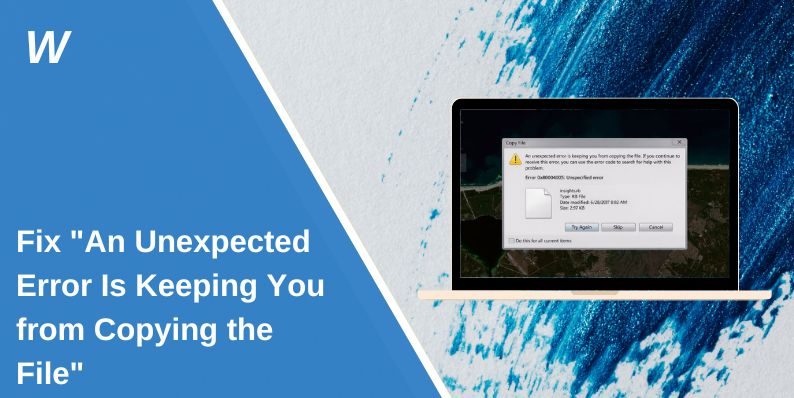
You try to copy a file in Windows, and suddenly a message appears: “An unexpected error is keeping you from copying the file.” The transfer stops. The file won’t move. It feels confusing, especially if the file looks normal. Don’t worry. This guide explains what the error means and shows you 8 safe fixes to solve it.
What Does “An Unexpected Error Is Keeping You from Copying the File” Mean?
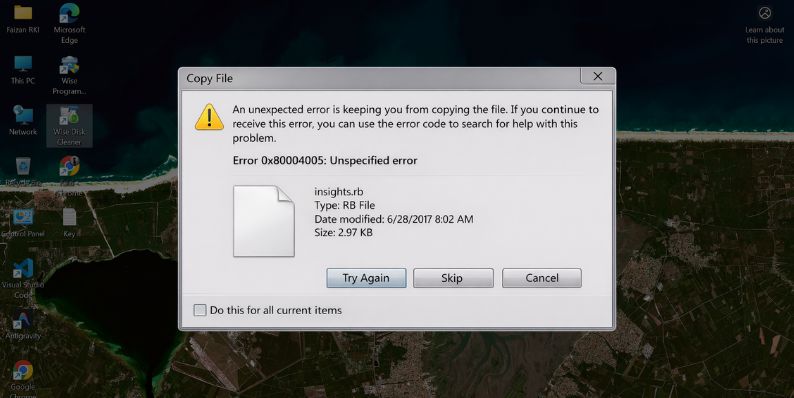
This message appears in Windows 10 or Windows 11 when File Explorer cannot complete a file copy operation. The system may fail to read the source file, write to the destination drive, or verify file permissions. Sometimes the problem comes from a corrupted file. Other times, the disk has bad sectors, or the NTFS file system detects an error.
Windows blocks the action to prevent further data damage. You may also see related error codes such as 0x80070570, 0x80004005, or 0x80070057. These codes usually indicate disk read problems, file system corruption, or permission conflicts. The good news is that this error does not always mean the file is permanently lost.
It often appears when copying files from a USB drive, external hard drive, network drive, or even between folders on your internal disk.
Common Causes of the File Copy Error
Windows blocks file copying when it detects something unsafe or unreadable. The problem may start from the storage device, file system, or user permissions. External drives formatted in FAT32 may struggle with large files. Antivirus software can also interfere with file transfers.
Below are the most common causes.
- Corrupted or partially damaged file
- Bad sectors on hard drive or SSD
- Insufficient file permissions
- Read-only file attribute enabled
- File path too long for Windows limit
- Incompatible file system like FAT32
- Antivirus or Windows Defender blocking access
- Failing USB or external hard drive
Each of these affects how Windows reads and writes data.
How to Fix “An Unexpected Error Is Keeping You from Copying the File”
Before trying advanced solutions, start with simple steps. Many file system errors resolve after a basic system refresh. Test the copy process after each fix.
Fix #1: Restart Your Computer
Temporary system glitches can interrupt file operations. Restarting Windows refreshes memory and closes background processes.
Steps:
- Click Start.
- Select Power.
- Choose Restart.
- Wait for Windows to boot fully.
- Try copying the file again.
If it works, the issue was temporary.
Fix #2: Run CHKDSK to Repair Disk Errors
Disk errors often cause copy failures. CHKDSK scans the NTFS file system and repairs bad sectors.
Follow these steps:
- Press Windows + S and search for Command Prompt.
- Right-click it and choose Run as administrator.
- Type: chkdsk C: /f and press Enter.
- Replace C with the drive letter if needed.
- Restart your PC if prompted.
This tool repairs file system corruption.
Fix #3: Take Ownership of the File
Permission issues can block copying. Taking ownership gives your user account full access.
Steps:
- Right-click the file.
- Select Properties.
- Open the Security tab.
- Click Advanced.
- Change the owner to your username.
- Apply changes and try again.
Administrator privileges may be required.
Fix #4: Remove the Read-Only Attribute
Some files have a read-only flag. This can prevent modification or transfer.
Steps:
- Open Command Prompt as administrator.
- Navigate to the file location.
- Type: attrib -r filename.ext
- Press Enter.
- Try copying again.
This removes the read-only restriction.
Fix #5: Shorten the File Path
Windows has a path length limit of around 260 characters in many cases. If the file is inside many nested folders, copying may fail.
Move the file to a higher-level folder, such as the Desktop. Rename long folder names. Then try copying again. Shorter paths reduce system conflicts.
Fix #6: Disable Antivirus Temporarily
Windows Defender or third-party antivirus software may block file transfers. Temporarily disable real-time protection and attempt the copy again. If it works, add the file or drive to the exclusion list before enabling protection again.
Fix #7: Run System File Checker
If Windows system files are corrupted, file operations may fail.
Follow these steps:
- Open Command Prompt as administrator.
- Type: sfc /scannow
- Press Enter.
- Wait for the scan to complete.
- Restart your PC.
System File Checker repairs damaged Windows components.
Fix #8: Format the External Drive (Last Resort)
If the error only occurs on a USB or external hard drive, the file system may be damaged. Formatting the drive can fix persistent corruption. Back up important files first.
Steps:
- Open Disk Management.
- Right-click the affected drive.
- Choose Format.
- Select NTFS as file system.
- Complete formatting.
After formatting, try copying files again.
Prevention Tips to Avoid File System Errors
Preventing file system errors saves time and protects data. A few small habits help maintain disk health.
- Always safely eject USB drives
- Avoid forced shutdown during file transfer
- Keep Windows updated
- Scan drives regularly for errors
- Avoid extremely long folder names
- Use NTFS for large file transfers
- Maintain enough free disk space
Conclusion
“An unexpected error is keeping you from copying the file” usually means Windows detected a disk, permission, or file system problem. The issue may come from corrupted files, bad sectors, long file paths, or blocked permissions. In most cases, running CHKDSK, adjusting permissions, or verifying disk health solves the problem.
If the error continues even after trying all fixes, consider contacting Microsoft Support or checking your hardware for failure. If this guide helped you, share it with others or leave a comment about which fix worked for you.

- How to Fix Game Awards 404 Not Found Error? Troubleshooting Guide - February 22, 2026
- Fix “An Unexpected Error Is Keeping You from Copying the File” - February 22, 2026
- Fix “A Running Instance of Acrobat Caused an Error” on Windows? - February 19, 2026
Where Should We Send
Your WordPress Deals & Discounts?
Subscribe to Our Newsletter and Get Your First Deal Delivered Instant to Your Email Inbox.