How to Fix Black Vertical Lines on a Monitor: Easy Troubleshooting Steps
Black vertical lines on a monitor can look scary, but they often come from simple issues like loose cables, driver problems or wrong display settings. Sometimes the lines show up when you start your computer, play games or move the monitor. Other times they appear slowly over time. This guide explains why these lines show up and how to fix them step by step so you can tell if the issue is the cable, GPU or the monitor panel itself.
Causes of Black Vertical Lines on a Monitor
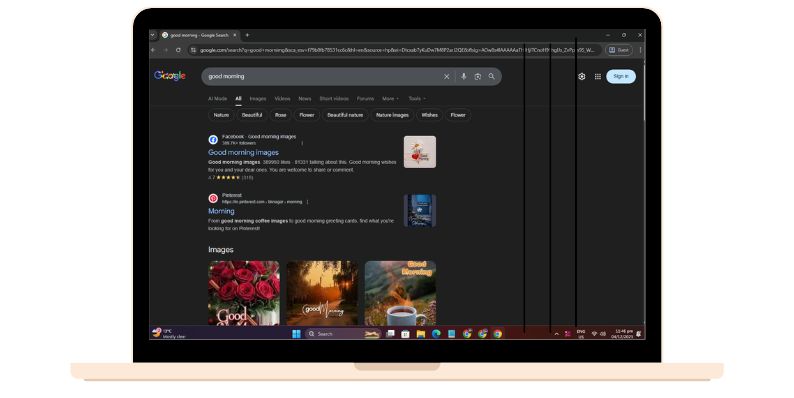
Here are the most common reasons vertical lines appear:
- Loose or damaged HDMI, DisplayPort or VGA cable
- Bent or worn-out cable pins
- GPU driver problems
- Wrong resolution or refresh rate
- GPU overheating
- Faulty monitor panel or dead pixel column
- Failing T-Con board inside the monitor
- Pressure damage or cracked internal layers
- Dust or dirt around display connectors
- Monitor firmware issues
How to Fix Black Vertical Lines on a Monitor
Follow each method one by one until the lines disappear.
1. Check and Reseat the Display Cable
A loose cable is one of the most common causes of vertical line problems. When the connection between the GPU and monitor is weak, the monitor struggles to read the video signal. This leads to lines, flickers or color problems.
Turn off your computer and monitor. Unplug the HDMI, DisplayPort or VGA cable from both the PC and the monitor. Inspect the cable ends for bent pins or dust. Plug the cable back in firmly until it clicks or sits tight. After reconnecting, turn on the monitor again and check if the lines disappear.
A secure connection often solves the problem right away.
2. Try a Different Cable
A failing cable can cause signal errors that produce black lines. Cables wear out over time, especially if bent or pressed behind a desk. Even a small tear in the internal wire can cause visual problems.
Switch to another HDMI or DisplayPort cable if you have one. Use a cable that supports your monitor’s resolution and refresh rate. After replacing the cable, restart your PC and check if the display is clear.
If the lines vanish, the old cable was the problem.
3. Test Another Monitor or Screen
Testing another display helps you figure out whether the issue comes from the monitor or the PC. If black lines appear on the second monitor as well, you likely have a GPU or driver problem. If the second monitor is clean, your original monitor has a hardware fault.
Connect your computer to a TV, another monitor or a laptop screen using the same cable type. If the image is normal, your monitor might need repair.
4. Update or Reinstall Display Drivers
Driver problems can cause artifacts such as vertical lines. When display drivers break or conflict with the system, the GPU struggles to send a stable signal.
Open your system settings and update your graphics drivers. NVIDIA, AMD and Intel all have official update tools. If updating doesn’t work, reinstall the drivers completely and restart the computer.
This refresh clears software issues that cause line patterns.
5. Adjust Screen Resolution and Refresh Rate
If the resolution or refresh rate is set higher than what the monitor supports, the display may show vertical lines or screen tearing.
Go to your display settings and choose the recommended resolution. Set the refresh rate to the default value supported by the monitor. After applying these settings, check if the screen becomes stable again.
A simple setting mismatch can create unwanted visual lines.
6. Use the Monitor’s Built-in Self-Test Mode
Most monitors have a built-in test feature that shows colored screens or patterns. This test helps you see if the panel itself is damaged.
Unplug the video cable so the monitor has no input. Many monitors automatically start the self-test pattern. If the vertical lines still show with no input connected, the monitor panel or T-Con board is damaged. If the lines disappear, the issue is with the computer or cable.
7. Check for Physical Damage or Pressure Marks
Vertical lines that stay in the exact same spot often point to hardware damage. A dead pixel column, cracked panel layer or damaged ribbon cable can all cause fixed black lines.
Look closely at the screen surface. If you see pressure marks, cracks or discoloration, the monitor panel is likely damaged. Internal LCD panel issues rarely get better and usually require a new monitor or professional repair.
8. Reset Monitor Settings to Factory Defaults
Sometimes display settings inside the monitor menu create color issues or line artifacts. A factory reset clears these settings.
Open the monitor’s on-screen display menu. Find the option that says “Reset,” “Factory Reset” or “Reset All Settings.” After the reset, the display returns to default values. Check if the vertical lines are gone.
9. Inspect the GPU for Overheating or Loose Seating
A GPU that overheats or moves slightly in its slot can cause signal problems. Dust buildup and weak fans raise temperatures, which leads to display issues.
Open your PC case if you are using a desktop. Make sure the GPU is fully seated in the PCIe slot. Clean dust from the fans and vents. Use a temperature monitoring tool to check if the GPU overheats under load.
A stable GPU reduces display glitches.
10. Replace or Repair the Monitor if the Panel Is Failing
If you see black lines during the monitor’s self-test, the panel, T-Con board or ribbon cable is damaged. These parts are inside the monitor and not easy to repair at home.
In this case, replacement is usually the best option. Repair costs for LCD panels often match or exceed the price of a new monitor.
Prevention Tips to Avoid Display Line Issues in the Future
Here are easy ways to avoid vertical line problems:
- Keep cables straight and unbent
- Avoid pressing on the screen
- Use quality HDMI or DisplayPort cables
- Keep your monitor clean
- Control GPU temperature with proper airflow
- Avoid dropping the monitor
- Use a surge protector to prevent power damage
Conclusion
Black vertical lines on a monitor can come from simple problems like loose cables or software issues, or from serious faults like panel damage. By checking cables, testing another monitor, updating drivers and running a self-test, you can find the cause quickly. If the lines remain during the self-test, the panel is damaged and the monitor likely needs replacement. If this guide helped you, feel free to share it or leave your thoughts.