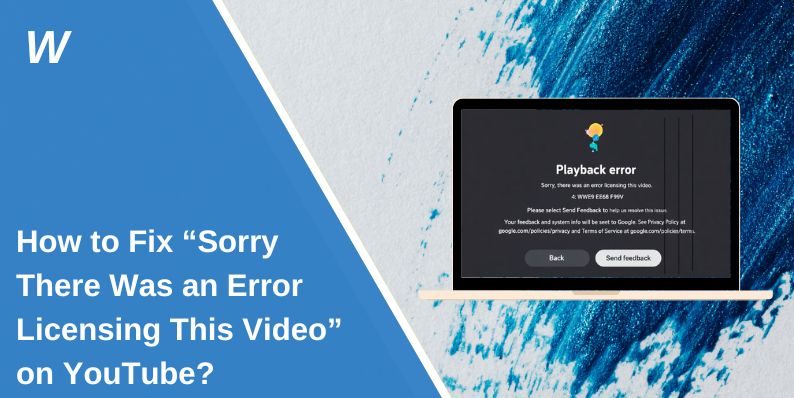
How to Fix “Sorry There Was an Error Licensing This Video” on YouTube?
You open YouTube, click a video, and instead of playing, it shows: “Sorry, there was an error licensing this video.” The video does not load. That feels confusing, especially when other videos might work. This error usually connects to YouTube’s playback permission system, browser settings, or network problems.
In this guide, you’ll learn what this error means, why it happens on YouTube, how to fix it step by step, and how to prevent it from happening again.
What Is “Sorry There Was an Error Licensing This Video” on YouTube?
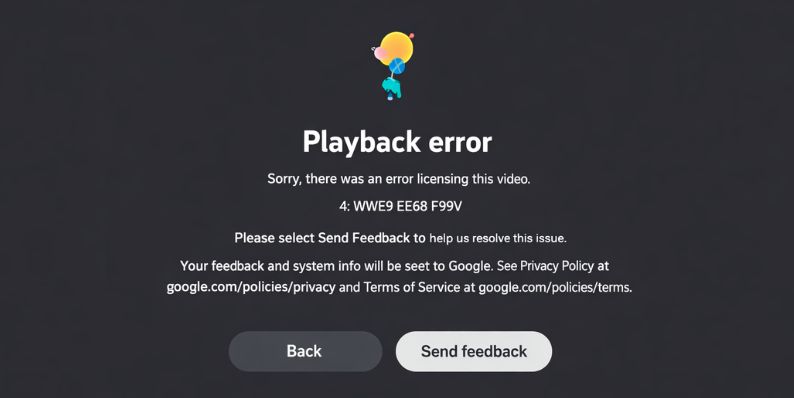
This YouTube error appears when the platform cannot verify playback rights for a video. YouTube uses Digital Rights Management systems like Widevine DRM to protect copyrighted content. When you press play, your browser or app must request a playback license from YouTube’s servers. If that request fails, YouTube blocks the video and shows the licensing error. The issue is not usually with the video file itself. It happens during authentication between your device and YouTube’s streaming server.
Most users see this error in Google Chrome, Mozilla Firefox, Microsoft Edge, or the YouTube app on Android and iPhone. It appears right after clicking play, before the video starts buffering.
Common Causes of YouTube Licensing Error
This issue can happen for several reasons depending on your browser, device, or network.
Common causes include:
- Corrupted browser cache or cookies
- Disabled Widevine DRM in the browser
- Outdated Google Chrome or Firefox version
- VPN or proxy interfering with YouTube region checks
- Blocked third-party cookies
- Weak or unstable internet connection
- Conflicting browser extensions
- Account session expired
How to Fix “Sorry There Was an Error Licensing This Video” on YouTube?
Start with simple fixes. Most users solve this problem in minutes. If basic steps do not work, move to advanced ones like checking DRM settings.
Fix #1: Refresh the Page or Restart the App
Sometimes the playback session fails temporarily. Try these simple steps to quickly refresh the session:
- Close the YouTube tab
- Reopen YouTube
- Press Ctrl + F5 to hard refresh
- Try playing the video again
On mobile, close and reopen the YouTube app.
Fix #2: Log Out and Log Back In
Your YouTube account session may have expired. Here are the following steps which help you to refresh your session:
- Click your profile icon
- Select Sign out
- Close the browser
- Open YouTube again
- Sign back in
- Play the video
This forces YouTube to issue a new playback license.
Fix #3: Clear Browser Cache and Cookies
Old cookies can block DRM authentication. Follow the steps below to easily clear cache:
- Open browser settings
- Go to Privacy and Security
- Click Clear browsing data
- Select Cookies and Cached files
- Restart the browser
Then open YouTube and test playback.
Fix #4: Enable Widevine DRM in Browser
YouTube requires Widevine for protected video playback. You can perform the following steps to check Widevine in Chrome:
- Type chrome://settings/content/protectedContent
- Make sure “Sites can play protected content” is enabled
- Restart the browser
In Firefox, check Settings > Digital Rights Management and ensure it is enabled.
Fix #5: Disable VPN or Proxy
YouTube licensing depends on regional rules. A VPN may confuse the license server.
Below are the steps that will guide you to disable VPN:
- Open your VPN application
- Click Disconnect
- Close the VPN
- Refresh YouTube
If playback works after disabling VPN, region conflict caused the issue.
Fix #6: Update Your Browser
Outdated browsers may not support the latest YouTube DRM requirements. The following steps will show you how to update Google Chrome:
- Open Chrome
- Click the three-dot menu
- Go to Help
- Click About Google Chrome
- Install updates if available
- Restart the browser
Do the same for Mozilla Firefox or Microsoft Edge.
Fix #7: Disable Problematic Extensions
Some extensions block scripts required for license verification. Perform the following steps carefully:
- Open Extensions page
- Disable ad blockers
- Disable script blockers
- Restart the browser
- Test the video
If it works, re-enable extensions one by one to find the cause.
Fix #8: Restart Router and Check Internet Stability
YouTube must connect to its license server. Weak internet can interrupt this process. These are the exact steps you need to follow:
- Turn off your router
- Wait 30 seconds
- Turn it back on
- Reconnect your device
- Test YouTube again
A stable connection ensures license validation.
Prevention Tips to Avoid YouTube Licensing Errors
Prevention helps reduce playback interruptions.
- Keep Google Chrome or Firefox updated
- Avoid switching VPN regions frequently
- Clear browser cache occasionally
- Keep Widevine DRM enabled
- Disable unnecessary extensions
- Maintain stable internet speed
- Log out from unused devices
Conclusion
In short, the “Sorry There Was an Error Licensing This Video” message on YouTube appears when the platform cannot verify playback rights through Widevine DRM. Common causes include corrupted cache, VPN interference, outdated browsers, or expired login sessions.
Start with refreshing and logging in again. Then check DRM settings and disable VPN. Most users fix it quickly. If the problem continues, try another browser or contact YouTube support. If this guide helped you, share it and comment below which fix worked for you.

- How to Fix unarc.dll Error Code 11 on Windows? Solution Guide - February 12, 2026
- How to Fix “Sorry There Was an Error Licensing This Video” on YouTube? - February 12, 2026
- How to Fix Jellyfin Won’t Play Media? - January 28, 2026
Where Should We Send
Your WordPress Deals & Discounts?
Subscribe to Our Newsletter and Get Your First Deal Delivered Instant to Your Email Inbox.