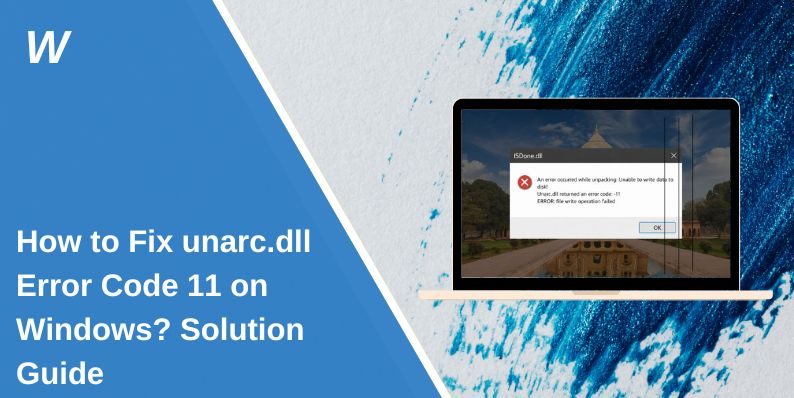
How to Fix unarc.dll Error Code 11 on Windows? Solution Guide
You are trying to install a game or extract a large archive, and suddenly the setup stops with a message: unarc.dll returned an error code -11. The installation fails. That can be frustrating, especially after waiting for the download to finish. This error usually appears during file unpacking and relates to corrupted data, memory limits, or disk problems.
In this guide, you’ll learn what unarc.dll error code 11 means, why it happens, how to fix it step by step, and how to prevent it in the future.
What Is unarc.dll Error Code 11 on Windows?
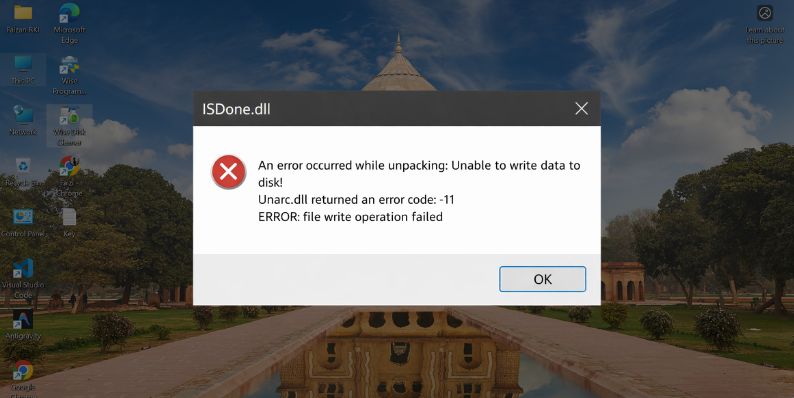
The unarc.dll file is a Dynamic Link Library used during archive extraction and game installation. It works together with ISDone.dll to unpack compressed data from RAR, ZIP, or ISO files. When Windows 10 or Windows 11 tries to decompress large files, unarc.dll processes the archive and verifies data integrity. Error code 11 usually signals a decompression failure or corrupted data stream. This means the system could not properly read or extract part of the compressed file. The problem is often linked to checksum mismatch, CRC error, insufficient RAM, or disk read issues.
You typically see this error during installation of large games, repacked setups, or when extracting files using tools like WinRAR or 7-Zip. The setup may reach a certain percentage, then suddenly stop with the error message.
Common Causes of unarc.dll Error Code 11
This error can occur due to hardware instability, corrupted archives, or system configuration problems. Sometimes the issue is simple. Other times it connects to deeper disk or memory faults.
Common causes include:
- Corrupted or incomplete archive download
- Insufficient RAM memory during extraction
- Incorrect virtual memory or page file settings
- Bad sectors on HDD or SSD
- Antivirus blocking DLL extraction
- CPU or RAM overclock instability in BIOS
- Damaged ISDone.dll dependency
How to Fix unarc.dll Error Code 11 on Windows?
Start with simple checks before changing system settings. Most users fix the issue by re-downloading files or adjusting memory settings. If the problem continues, move to deeper fixes.
Fix #1: Re-download the Installation File
Corrupted downloads often cause CRC errors and decompression failures. Try these simple steps to quickly replace the file:
- Delete the current setup or archive
- Re-download from the original source
- Ensure the download completes fully
- Avoid pausing the download
- Run the setup again
If the file was corrupted, the fresh download should fix it.
Fix #2: Disable Antivirus Temporarily
Windows Defender or third-party antivirus may block DLL files during extraction. Here are the following steps which help you to disable antivirus temporarily:
- Open Windows Security
- Go to Virus and Threat Protection
- Click Manage Settings
- Turn off Real-time protection
- Run the installer again
Remember to enable protection after installation.
Fix #3: Use Latest WinRAR or 7-Zip
Outdated extraction tools may fail to unpack modern compression formats. Follow the steps below to easily update your extraction tool:
- Open WinRAR or 7-Zip
- Check for updates
- Install the latest version
- Restart the system
- Try extracting again
Newer versions improve archive compatibility.
Fix #4: Increase Virtual Memory (Page File)
Low memory can interrupt decompression, especially with large files. You can perform the following steps to increase virtual memory:
- Press Windows + R
- Type sysdm.cpl and press Enter
- Go to Advanced tab
- Click Settings under Performance
- Select Advanced
- Click Change under Virtual Memory
- Increase the page file size
Restart your computer after adjusting.
Fix #5: Check Disk for Errors Using CHKDSK
Disk errors or bad sectors may prevent proper data reading. The following steps will show you how to scan your disk properly:
- Open Command Prompt as Administrator
- Type chkdsk C: /f /r
- Press Enter
- Confirm restart if prompted
- Let the scan complete
This repairs logical disk errors.
Fix #6: Run System File Checker (SFC)
Corrupted Windows system files can interfere with DLL operations. Below are the steps that will guide you to run SFC:
- Open Command Prompt as Administrator
- Type sfc /scannow
- Press Enter
- Wait for the scan to finish
- Restart your PC
This checks and repairs protected system files.
Fix #7: Reset Overclock Settings in BIOS
Unstable CPU or RAM overclocking can cause decompression errors. Perform the following steps carefully:
- Restart your computer
- Enter BIOS using F2, F10, or Delete
- Locate CPU or RAM frequency settings
- Restore default values
- Save and exit BIOS
System instability during high load can trigger error code 11.
Prevention Tips to Avoid unarc.dll Error Code 11
Prevention reduces installation failures. Keep your system stable and updated by following these tips:
- Download files from trusted sources
- Keep Windows 10 or Windows 11 updated
- Avoid aggressive overclock settings
- Maintain enough free disk space
- Use updated WinRAR or 7-Zip
- Scan hard drive regularly
- Monitor RAM health
Conclusion
In short, unarc.dll error code 11 usually happens when Windows fails to unpack compressed data. Corrupted files, low memory, disk errors, or system instability are common triggers. Most users fix the issue by re-downloading the archive or increasing virtual memory.
Start with simple fixes first. Then check disk health and system files if needed. If the error continues, hardware testing may be required. If this guide helped you, share it and comment below which fix worked for you.

- How to Fix unarc.dll Error Code 11 on Windows? Solution Guide - February 12, 2026
- How to Fix “Sorry There Was an Error Licensing This Video” on YouTube? - February 12, 2026
- How to Fix Jellyfin Won’t Play Media? - January 28, 2026
Where Should We Send
Your WordPress Deals & Discounts?
Subscribe to Our Newsletter and Get Your First Deal Delivered Instant to Your Email Inbox.